Superset - Run 10 Parallel AI Agents on Your Machine
Superset is a desktop app that orchestrates multiple AI coding agents in parallel using git worktrees. Built with Rust, it works with Claude Code, Codex, and other CLI agents.
TL;DR
TL;DR: Superset is a Rust-built desktop app that runs 10 or more AI coding agents simultaneously in isolated git worktrees, with built-in terminal, diff viewer, and agent monitoring.
Source and Accuracy Notes
- Project page: superset.sh
- Source repository: github.com/superset-sh/superset — verified via curl
- License: Elastic License 2.0 (ELv2) — confirmed from LICENSE.md
- Latest release:
desktop-v1.15.1(verified via GitHub Releases API) - GitHub stars: 12,477+ (verified via GitHub REST API)
- HN launch thread: Show HN: Superset – Terminal to run 10 parallel coding agents (96 points)
What Is Superset?
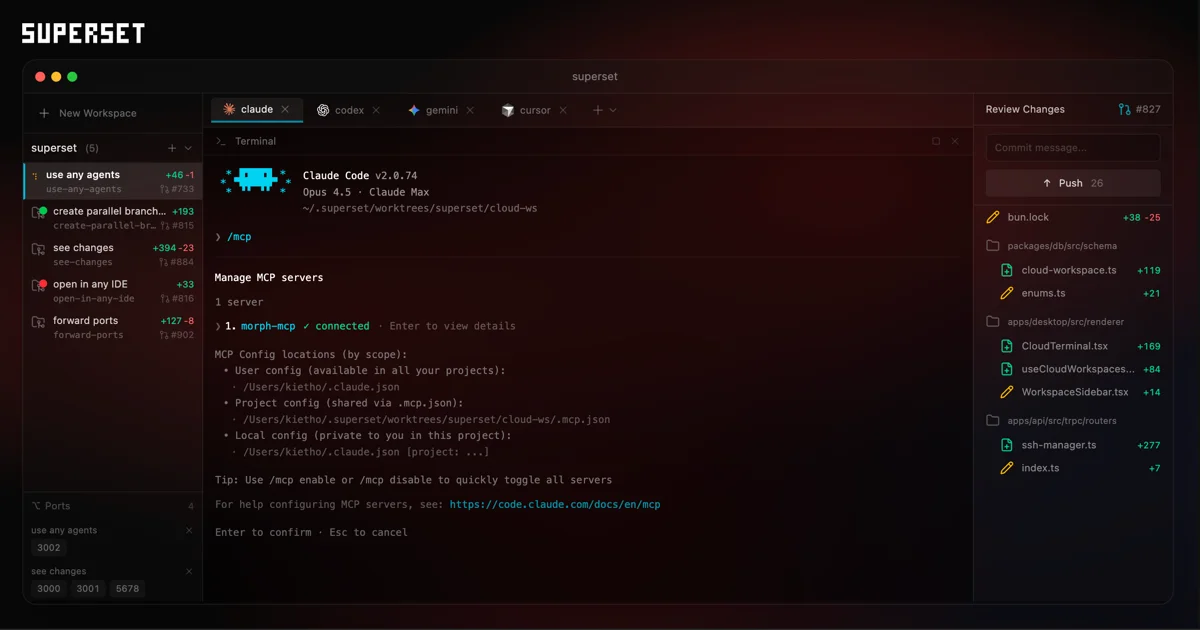
Superset is a desktop application that replaces the chaos of juggling multiple AI agent terminal sessions with a single, organized workspace. Instead of switching between tabs and losing track of which agent is working on what, you get a split-pane interface where every agent runs in its own isolated git worktree.
The core pitch from the README:
Orchestrate swarms of Claude Code, Codex, and more in parallel. Works with any CLI agent. Built for local worktree-based development.
Key characteristics:
- Rust-built — cold starts in under 60ms, 32MB core, zero garbage collection pauses
- Cross-platform — macOS, Windows, and Linux
- CLI-agent agnostic — works with any command-line AI coding tool, not just Claude Code or Codex
- Git worktree isolation — each agent task gets its own branch and working directory, preventing conflicts
Setup Workflow
Step 1: Download and Install
Download the latest release for your platform from the GitHub releases page:
# macOS — download from github.com/superset-sh/superset/releases/latest
# or use the direct link from the release page
The installer is a standard macOS .dmg (Apple Silicon + Intel), Windows .exe, or Linux package depending on your OS.
Step 2: Launch and Authenticate
Open Superset after installation. On first launch, you’ll connect your AI agent credentials. Superset supports:
- Claude Code (Anthropic)
- OpenAI Codex (via API key)
- Any other CLI-based agent that accepts an API key or uses environment variables
Configuration is stored locally and never sent to a third-party server.
Step 3: Create Your First Workspace
A workspace in Superset maps to one git worktree with a dedicated agent session. To create one:
- Click New Workspace in the sidebar
- Give it a name (e.g.,
feature-auth,bugfix-login) - Select the base repository and a new branch will be created automatically
- The agent launches in an embedded terminal within that workspace
You can run multiple workspaces simultaneously. The sidebar shows all active agents with status indicators.
Step 4: Connect an External Editor
Superset can hand off files to your preferred editor. Click the Open in Editor button in any workspace to jump to that agent’s current file in VS Code, Vim, or your editor of choice.
Deeper Analysis
Why Git Worktrees Matter
The choice of git worktrees as the isolation mechanism is deliberate. Unlike containers or VMs, worktrees are lightweight and native to Git — no extra daemon or setup required. Each worktree has its own working directory and branch, so agents can:
- Edit the same repo in parallel without stepping on each other’s changes
- Have independent state that survives restarts
- Merge or discard results without complex cleanup
The Superset diff viewer then lets you review each agent’s changes before committing.
Agent Monitoring
The sidebar tracks every running agent. Status indicators show:
- Working (agent is actively running)
- Waiting (agent paused, needs input)
- Done (task complete)
- Error (agent crashed or hit a limit)
Dock badges on macOS alert you when an agent needs attention, even if Superset is not the focused window.
Remote and SDK Access
Superset is not limited to local use. The README mentions reachability via:
- Remote hosts
- CLI
- SDK
- MCP (Model Context Protocol)
This makes it suitable for teams where one person orchestrates multiple agents across machines.
Practical Evaluation Checklist
- Cross-platform desktop app (macOS, Windows, Linux)
- Git worktree-based agent isolation
- Built-in terminal with tabs and splits
- Built-in diff viewer
- Agent monitoring with status indicators
- Works with any CLI-based AI coding agent
- Editor handoff (VS Code, Vim, etc.)
- Remote/SDK/MCP access options
- Persistent sessions across restarts
- Rust-based for performance (60ms cold start)
Security Notes
- Agent API keys are stored locally, not on a remote server
- Each workspace operates on an isolated git worktree, limiting blast radius of a misbehaving agent
- Superset does not proxy or log agent traffic — it is purely an orchestration layer
FAQ
Q: Does Superset work with Cursor, Windsurf, or other GUI-based AI editors? A: No. Superset is designed for CLI-based agents (Claude Code, Codex CLI, etc.). GUI editors that run their own agent processes are outside its scope.
Q: Can agents running in different workspaces share files? A: By design, no — each workspace is an isolated git worktree. You can merge branches manually after agents complete their tasks.
Q: What happens if an agent corrupts the worktree? A: Since each workspace has its own branch, a corrupted worktree does not affect your main branch. You can discard the branch and start fresh.
Q: Is there a cloud or hosted version? A: Not currently. Superset runs entirely on your local machine, with optional remote host access for team scenarios.
Conclusion
Superset solves the multi-agent chaos problem by giving each AI coding agent its own git worktree, terminal, and review pane — all in one desktop window. With 12K+ GitHub stars and an active release cadence, it is a practical tool for developers who want to parallelize AI-assisted coding without losing track of what each agent is doing.
If you regularly run multiple AI coding sessions simultaneously, the worktree isolation and built-in diff viewer alone make it worth trying. Download the latest release from the GitHub releases page and connect your preferred CLI agent.
Related Posts
ai-setup
Recall – Persistent Memory for Claude Code via MCP Hooks
Recall gives Claude Code a permanent memory store that survives session restarts and context compaction. Four hooks capture and restore context automatically — with cloud SaaS or self-hosted options.
2/28/2026
dev-tools
Automotive Skills Suite for AI Engineering
Evaluate Automotive Skills Suite for APQP, ASPICE, HARA, safety-plan, and DIA workflows with setup notes, governance risks, and SME review guidance.
5/28/2026
dev-tools
awesome-agentic-ai-zh Roadmap Guide
Explore awesome-agentic-ai-zh as a Chinese agentic AI learning roadmap, with setup notes, track selection, study workflow, and evaluation guidance.
5/28/2026