OpenPets: Desktop Pets for AI Coding Agents
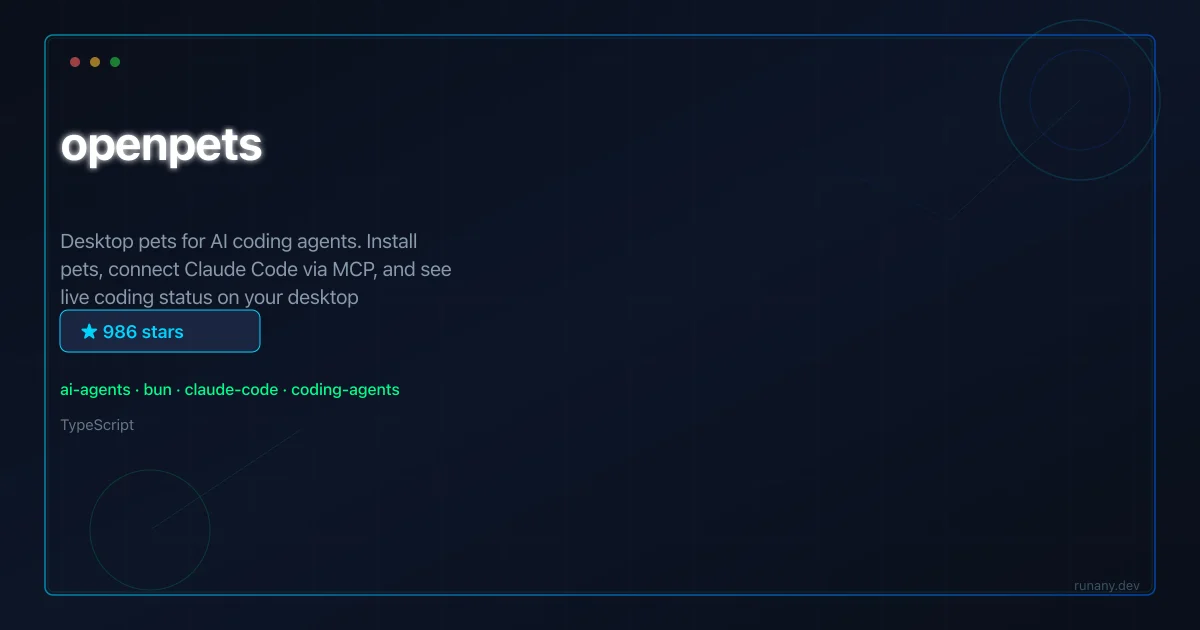
Animated desktop pets that react to Claude Code, OpenCode, and MCP agents — privacy-safe reactions and speech without exposing code or secrets.
TL;DR
TL;DR: OpenPets drops an animated pixel-art pet on your desktop that reacts to Claude Code, OpenCode, and MCP-capable agents — bringing ambient presence and light social feedback to coding sessions without exposing sensitive data.
Source and Accuracy Notes
This post is based on the official OpenPets GitHub repository (MIT, TypeScript/Electron) and its integration docs. The project is maintained by Boring Dystopia Development. Pets can also run independently without agent integration — bundled abilities work immediately on launch.
What Is OpenPets?
OpenPets is a tray-first desktop companion app built with Electron. A small animated pet appears on your desktop, idles, reacts, and provides ambient presence. Beyond visual company, the project layers developer integrations that let AI coding agents communicate with the pet through the Model Context Protocol.
Two modes: standalone and agent-connected
Standalone mode works out of the box. The pet has bundled abilities that make it feel alive without any agent setup — ambient check-ins, break nudges, playful actions, focus timers, and optional safe walks. This works immediately after downloading the app.
Agent-connected mode layers MCP on top. When your coding agent runs, it can send reactions and speech bubbles through the OpenPets MCP server. The pet reacts to coding events — thinking, editing, testing, waiting, success, error — with animations and short safe messages. No code, logs, URLs, or secrets ever appear in speech bubbles.
MCP tools available
Three MCP tools expose OpenPets to any MCP-capable agent:
openpets_status— check whether OpenPets is reachable and which pet is targeted.openpets_react— set a reaction on the target pet (thinking, editing, testing, waiting, success, error).openpets_say— show a short safe speech bubble, optionally combined with a reaction.
Messages through openpets_say must be short, single-line, and free of code-like patterns, URLs, file paths, or secrets.
Supported agents
| Agent | Integration method | Notes |
|---|---|---|
| Claude Code | MCP via @open-pets/mcp, managed hooks in ~/.claude/ | Global or project-local setup |
| OpenCode | MCP via @open-pets/cli mcp, @open-pets/opencode plugin | Global desktop or .opencode project-local |
| Pi | Extension package @open-pets/pi | Extension-first (not MCP-first) |
| Generic MCP client | stdio via @open-pets/mcp | Any MCP-capable editor or agent |
Privacy design
The hook/plugin speech is generated from static local message pools. Prompts, code, logs, command output, URLs, paths, and secrets are never forwarded to the pet window. This is enforced structurally — the integration layer does not send that data.
Repo-Specific Setup Workflow
Step 1: Install the desktop app
Download the latest release from OpenPets Releases:
# macOS Apple Silicon
curl -L -o /tmp/OpenPets.dmg "https://github.com/alvinunreal/openpets/releases/latest/download/OpenPets-*-mac-arm64.dmg"

# macOS Intel
curl -L -o /tmp/OpenPets.dmg "https://github.com/alvinunreal/openpets/releases/latest/download/OpenPets-*-mac-x64.dmg"

# Windows
curl -L -o /tmp/OpenPets.exe "https://github.com/alvinunreal/openpets/releases/latest/download/OpenPets-*-win-x64-setup.exe"

# Linux
curl -L -o /tmp/OpenPets.AppImage "https://github.com/alvinunreal/openpets/releases/latest/download/OpenPets-*-linux-x86_64.AppImage"

Launch the downloaded file. On macOS, you may need to bypass the gatekeeper:

```bash
xattr -dr com.apple.quarantine /Applications/OpenPets.app
open /Applications/OpenPets.app

The pet appears immediately in standalone mode. Use the desktop app to browse installed pets, preview animations, and manage which pet follows each agent.

### Step 2: Connect to Claude Code

Install the OpenPets agent skill:

```bash
npx skills add alvinunreal/openpets --skill openpets

Then open Claude Code and say:


    Use the OpenPets skill. Install OpenPets for me, connect this agent, and verify the integration works.

For project-specific setup, open Claude Code inside your repo and say:


Use the OpenPets skill. Configure this project for Claude Code with a pet.

Or configure MCP manually:

```bash
# Global MCP (default pet)
claude mcp add --scope user openpets -- npx -y @open-pets/mcp@latest

# Target a specific pet
claude mcp add --scope user openpets -- npx -y @open-pets/mcp@latest --pet <petId>

The MCP server connects to the desktop app through a local IPC discovery file. Claude Code's hooks automatically send reactions based on tool activity.

### Step 3: Connect to OpenCode

Project-local setup via CLI:

```bash
npx -y @open-pets/cli@latest configure --agent opencode --pet <petId>

Global config: add to your `opencode.json`:

```json
{
  "mcp": {
    "openpets": {
      "type": "stdio",
      "command": "npx",
      "args": ["-y", "@open-pets/mcp@latest"]
    }
  }
}

Install the auto-reaction plugin:

```bash
npx -y @open-pets/opencode@latest
```bash

### Step 4: Generic MCP setup

For any other MCP-capable agent or editor, add to your MCP config:

```json
{
  "mcpServers": {
    "openpets": {
      "type": "stdio",
      "command": "npx",
      "args": ["-y", "@open-pets/mcp@latest"]
    }
  }
}

Run the desktop app, then invoke `openpets_status` to verify connectivity:

```json
{
  "name": "openpets_status",
  "arguments": {}
}

### WSL setup (Windows + Linux agent)

If you run the desktop on Windows but your agent in WSL, enable the opt-in TCP transport:

```bash
# In WSL, install the TCP-aware client
npm install -g @open-pets/client

# Configure the agent to connect via TCP
openpets set-transport tcp
openpets set-host <your-windows-ip>:9312

See [`docs/wsl-ipc.md`](https://github.com/alvinunreal/openpets/blob/main/docs/wsl-ipc.md) for the full WSL IPC guide.

## Deeper Analysis

### What the reactions actually do

The automatic hooks are purely decorative. `openpets_react` sets the pet's current animation state — thinking (agent starts a prompt), editing (file write), testing (shell command), waiting (permission request), success (idle), error (session stop). The pet plays a matching animation and optionally shows a short message from a static pool.

This means the pet never influences agent behavior. It can't approve, deny, block, or intercept anything. It's a visual signal layer — useful for humans who want ambient awareness of what their agent is doing without constantly watching a terminal.

### Safety enforcement

`openpets_say` enforces message safety at the integration layer. Messages that look like code (brackets, semicolons, pipe characters), URLs, file paths, or secret patterns are rejected before they reach the pet window. This is structural, not advisory — the MCP client won't forward a malformed message.

### Pet-pack system

OpenPets loads animated pet packs from the desktop app. Each pet has its own animation set, idle behavior, and reaction mapping. When an integration is configured with `--pet <petId>`, OpenPets asks the desktop for a short-lived lease on that pet — it opens as a separate window alongside the default pet.

Missing, invalid, broken, built-in, or default pet requests fall back to the desktop default pet. This gives you a default companion and per-project or per-agent pets without conflict.

### Pi extension difference

Pi uses an extension-first approach rather than MCP-first. The `@open-pets/pi` package listens to Pi lifecycle and tool events directly and sends reactions through `@open-pets/client`. The MCP server is still available, but the extension handles the automatic wiring. Inside Pi, registered commands include `/openpets status`, `/openpets test`, `/openpets react <reaction>`, and `/openpets say <message>`.

## Practical Evaluation Checklist

- [ ] Download and launch OpenPets desktop app
- [ ] Browse and select a pet from the desktop app
- [ ] Verify pet appears and idles on desktop
- [ ] Connect Claude Code via MCP (`claude mcp add`)
- [ ] Send `openpets_status` to verify connectivity
- [ ] Trigger `openpets_react` with "thinking" from agent
- [ ] Trigger `openpets_say` with a short safe message
- [ ] Verify no code or secrets appear in speech bubbles
- [ ] Test project-local pet targeting with `--pet <petId>`
- [ ] Enable auto-reaction hooks in Claude Code settings
- [ ] Test WSL TCP transport if on Windows + WSL
- [ ] Explore bundled abilities (break nudges, focus timers)

## Security Notes

- **No data exfiltration** — the hook system forwards only event type and static message pool lookups. No prompts, tool output, file contents, paths, URLs, or secrets are sent to the pet window.
- **Local IPC only** — the MCP server communicates with the desktop app over a local socket or pipe. No network traffic is involved in agent-pet communication.
- **WSL TCP** — when enabling the TCP transport for WSL, ensure your Windows firewall allows inbound connections on the configured port. Limit it to your WSL subnet if possible.
- **Message validation** — `openpets_say` rejects messages that look like code or secrets. Don't disable this validation in custom integrations.

## FAQ

**Q: Does OpenPets slow down my coding agent?**
**A:** No. The MCP connection is one-directional (agent → pet) and uses a local IPC socket. The pet runs as a separate Electron process. There is no blocking call between agent action and pet reaction.

**Q: Can I use OpenPets without connecting any agent?**
**A:** Yes. The desktop app ships with bundled abilities — ambient check-ins, break nudges, playful actions, focus timers, and safe walks — that work immediately after launching. Agent integration is entirely optional.

**Q: How do I pick a different pet for a specific project?**
**A:** Use the `--pet <petId>` flag when adding the MCP server: `claude mcp add --scope project openpets -- npx -y @open-pets/mcp@latest --pet <petId>`. OpenPets asks the desktop for a lease on that specific pet and opens it in a separate window.

**Q: What happens if the pet ID doesn't exist?**
**A:** Missing, invalid, broken, built-in, or default pet requests fall back to the desktop default pet. You won't get an error — just the default pet.

**Q: Is the speech bubble content editable?**
**A:** The message pools are static local strings (e.g., "Approval needed", "Something failed"). You can customize the pool content in the desktop app's settings. Custom integration code should always use `openpets_say` with short plain-text messages.

**Q: Does OpenPets work on Linux?**
**A:** Yes, via the AppImage. The WSL IPC path is only for Windows + Linux agent hybrid setups. Standard Linux desktops work with the stdio MCP directly.

## Conclusion

OpenPets adds a low-overhead social layer to AI coding sessions. A pet on your desktop gives you ambient awareness of what your agent is doing without switching context to a terminal. The MCP integration is opt-in and fully local — no cloud, no external service, no data leaves your machine.

For developers who find terminal output overwhelming or who want a more personable coding environment, OpenPets is a simple but effective addition. The safety-first message design means you never have to worry about secrets leaking into pet speech bubbles, even in long sessions with sensitive code.
Related Posts
ai-setup
Recall – Persistent Memory for Claude Code via MCP Hooks
Recall gives Claude Code a permanent memory store that survives session restarts and context compaction. Four hooks capture and restore context automatically — with cloud SaaS or self-hosted options.
2/28/2026
dev-tools
Automotive Skills Suite for AI Engineering
Evaluate Automotive Skills Suite for APQP, ASPICE, HARA, safety-plan, and DIA workflows with setup notes, governance risks, and SME review guidance.
5/28/2026
dev-tools
awesome-agentic-ai-zh Roadmap Guide
Explore awesome-agentic-ai-zh as a Chinese agentic AI learning roadmap, with setup notes, track selection, study workflow, and evaluation guidance.
5/28/2026