TL;DR
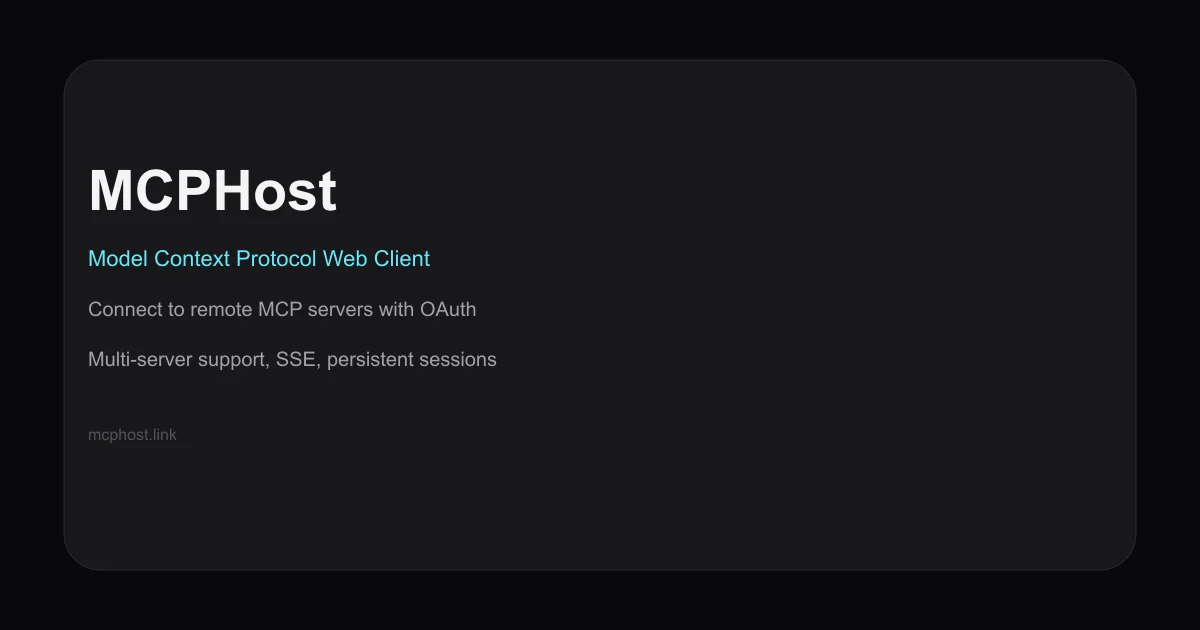
TL;DR: MCPHost is an open-source web client that lets you connect to multiple remote MCP servers via OAuth or bearer token, browse their tools and resources, and interact through a chat interface — no install required.
Source and Accuracy Notes
- Project page: mcphost.link — visited and verified 2026-07-11
- Source repository: github.com/hemanth/mcp-web-client — README read end-to-end
- License: MIT (verified via README)
- HN launch thread: news.ycombinator.com/item?id=46417735
What Is MCPHost?
MCPHost is a web-based client for the Model Context Protocol (MCP). It lets you connect to one or more remote MCP servers from a browser tab, browse the tools and resources each server exposes, and chat with an LLM through those connections.
The project fills a gap in the MCP ecosystem: most MCP clients are desktop apps or VS Code extensions. MCPHost runs anywhere with a browser and supports OAuth 2.0 with PKCE for secure authentication against servers that require it.
Key features
- Multi-server support — connect to several MCP servers simultaneously and switch between them in the sidebar
- OAuth 2.0 + PKCE — authenticate against servers that require it, without leaking tokens
- Bearer token auth — simpler option for servers using static tokens
- Persistent sessions — servers and credentials stored in browser localStorage, survive page refresh
- Real-time SSE — live updates from servers via Server-Sent Events
- Full MCP capability coverage — tools, resources, and prompts all browsable
Setup Workflow
Step 1: Open the web client
No install needed. Navigate to mcphost.link in any modern browser.
Step 2: Configure an LLM provider
On first load, click LLM Settings and enter your API key for OpenAI, Anthropic, or another compatible provider. The client uses your key directly — nothing is proxied through MCPHost’s servers.
Step 3: Add an MCP server
- Click the + button in the left sidebar
- Enter the server URL (e.g.,
https://mcp.example.com/sse) - Choose authentication method:
- No Auth — for public servers
- Bearer Token — paste your existing access token
- OAuth 2.0 — initiates the OAuth flow with PKCE
- Click Add Server
The server appears in the sidebar. Select it to see its tools, resources, and prompts.
Step 4: Connect via chat
Select a server in the sidebar, then type in the chat input. MCPHost passes your message to the connected LLM, which can call tools from the active server. Responses stream back in real time.
How It Works Under the Hood
MCPHost is a Next.js 15 + React 19 app. It communicates with MCP servers using the MCP protocol 2024-11-05.
For servers that require authentication, the client stores OAuth tokens in browser session storage. Bearer tokens are also stored locally. Nothing is sent to MCPHost’s own infrastructure — all requests go directly from your browser to the MCP server.
The UI uses Tailwind CSS and a dark theme. The sidebar lists all configured servers; switching between them changes which server’s tools the LLM can call.
Practical Evaluation Checklist
- Web-based, no install required
- Multi-server simultaneous connections
- OAuth 2.0 with PKCE for secure auth
- Bearer token fallback for simpler setups
- Persistent sessions via localStorage
- Real-time SSE streaming
- MIT license
- Open source (github.com/hemanth/mcp-web-client)
Security Notes
- OAuth tokens and bearer tokens are stored in browser localStorage. This is the same security model as most browser-based auth apps, but be aware of who has access to your browser profile.
- All MCP communication happens directly between your browser and the remote server. MCPHost does not act as a relay or proxy.
- OAuth implementations use PKCE (Proof Key for Code Exchange), which prevents token interception via authorization code replay.
FAQ
Q: Do I need an MCP server to use this? A: Yes. MCPHost is a client — it connects to existing MCP servers. You need at least one server running that implements the MCP protocol.
Q: Can I connect to multiple servers at once? A: Yes. Add multiple servers via the sidebar and switch between them. The LLM only calls tools from the currently selected server.
Q: Does MCPHost work with any LLM provider? A: It works with providers that expose a standard chat completion API and accept an API key. OpenAI and Anthropic are explicitly supported in the settings UI.
Q: Is my data sent to MCPHost’s servers? A: No. All requests go directly from your browser to the MCP server you configure. MCPHost’s own infrastructure only serves the web app.
Conclusion
MCPHost is a clean, no-install way to interact with MCP servers from any browser. Its support for OAuth 2.0 + PKCE makes it one of the few web-based MCP clients that can securely connect to servers requiring real authentication flows. If you’re evaluating MCP servers or need a portable client without desktop software, it’s worth a look.
- Try it at mcphost.link
- Source on GitHub: github.com/hemanth/mcp-web-client
Related Posts
ai-setup
Recall – Persistent Memory for Claude Code via MCP Hooks
Recall gives Claude Code a permanent memory store that survives session restarts and context compaction. Four hooks capture and restore context automatically — with cloud SaaS or self-hosted options.
2/28/2026
dev-tools
Automotive Skills Suite for AI Engineering
Evaluate Automotive Skills Suite for APQP, ASPICE, HARA, safety-plan, and DIA workflows with setup notes, governance risks, and SME review guidance.
5/28/2026
dev-tools
awesome-agentic-ai-zh Roadmap Guide
Explore awesome-agentic-ai-zh as a Chinese agentic AI learning roadmap, with setup notes, track selection, study workflow, and evaluation guidance.
5/28/2026