Kumbukum - Open Source Memory Layer for AI Teams
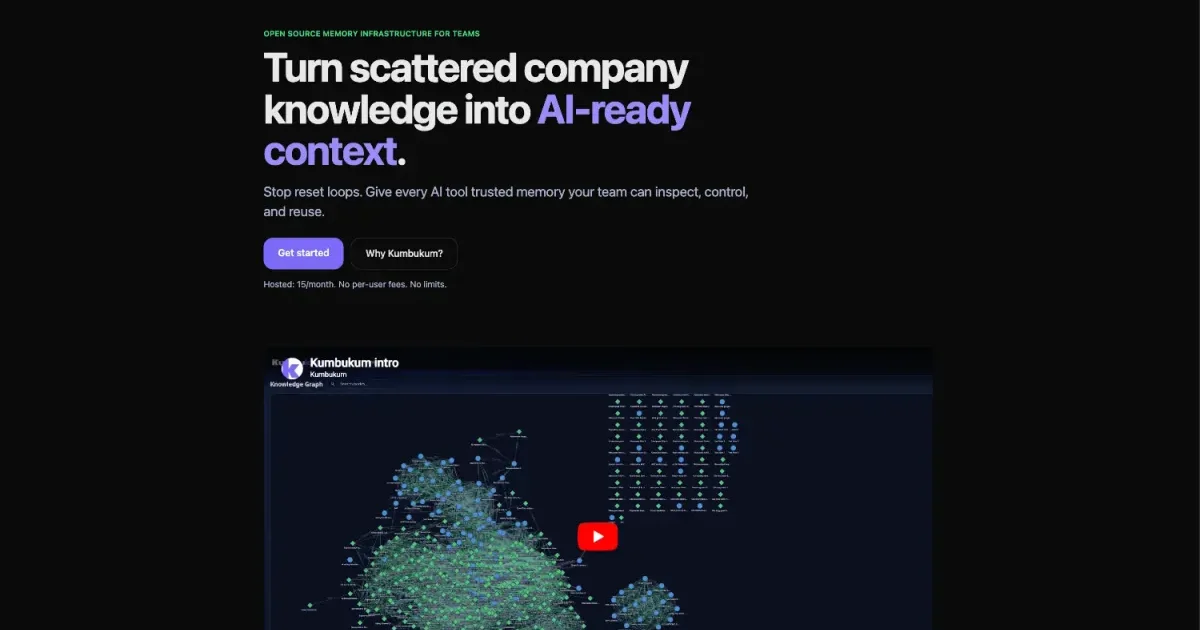
Kumbukum is an AGPL-3.0 open-source memory infrastructure that gives AI tools persistent, shared context across sessions, projects, and clients.
TL;DR
TL;DR: Kumbukum is an open-source shared memory layer for AI-native teams — store notes, URLs, decisions, and context in one searchable place, then expose it to Claude Desktop, Cursor, or any MCP-compatible AI tool via an MCP server.
Source and Accuracy Notes
- Project page: kumbukum.com ← visited and verified
- Source repository: github.com/kumbukum/kumbukum ← README read end-to-end
- License: AGPL-3.0 ← verified from repo
- Documentation: docs.kumbukum.com ← verified
- MCP Docs: docs.kumbukum.com/mcp/ ← verified
What Is Kumbukum?
AI tools are good at reasoning but terrible at remembering. Every new session starts from scratch — no context about your team, your projects, or your past decisions.
Kumbukum solves this by providing a persistent, shared memory layer that sits between your team and your AI tools. It is open source (AGPL-3.0) and can be self-hosted or used via the managed cloud.
From the README:
Stop reset loops. Give every AI tool trusted memory your team can inspect, control, and reuse.
Key Features
- Notes — rich-text documents with full-text and semantic search
- Memories — short-form context for preferences, decisions, and learnings
- URLs — saved pages with extracted content and optional full-site crawling
- Knowledge Graph — manual, tag-based, and semantic links between items
- AI Chat — search and manage knowledge with natural language
- MCP Server — 44 tools for notes, memories, URLs, projects, graph, and search
- Browser Extension — save notes and URLs from anywhere
- Bidirectional Git Sync — sync project knowledge to and from Git repositories
Setup Workflow
Option 1: Kumbukum Cloud (Managed)
- Sign up at app.kumbukum.com
- Create your first project
- Generate a personal access token in Settings → Tokens
- Configure your AI tool (see MCP client setup below)
Option 2: Self-Hosted (Open Source, Free)
See the self-hosted guide for full installation instructions. The self-hosted edition has the same feature set as the cloud version.
Connecting to Claude Desktop (MCP)
Kumbukum ships an MCP server with 44 tools. After setting up your access token, add this to your Claude Desktop config (~/Library/Application Support/Claude/claude_desktop_config.json on macOS):
{
    "mcpServers": {
        "kumbukum": {
            "command": "npx",
            "args": ["-y", "mcp-remote", "https://mcp.kumbukum.com/mcp"],
            "env": {
                "ACCESS_TOKEN": "your-access-token"
            }
        }
    }
}
The same MCP endpoint works with Cursor and any other MCP-compatible client.
How It Works
- Capture knowledge — add notes, store memories, save URLs, or import documents
- Connect your tools — plug Kumbukum into Claude Desktop, Cursor, or another MCP client
- Retrieve the right context — your assistant searches and reuses what matters, instead of starting from zero every time
Deeper Analysis
What makes it different from simple note-taking?
Most note-taking tools are designed for humans to read later. Kumbukum is designed for AI agents to query and use at runtime. The MCP server exposes 44 discrete tools — not just a document dump, but structured access to memories, URLs, tags, and graph relationships.
Git Sync is the standout feature
The bidirectional Git Sync is notable for teams that already use Git. It means your project-level knowledge (decisions, architecture notes, API conventions) stays in sync with your codebase without manual copy-paste.
Privacy and control
Since Kumbukum is open source and self-hostable, you retain full control over where your team’s knowledge lives. This matters for teams handling sensitive client data or operating under compliance requirements.
Practical Evaluation Checklist
- Clone the repo and run the self-hosted setup
- Add a note and a URL via the web UI
- Configure Claude Desktop MCP and verify tools are accessible
- Test cross-session memory persistence
- Try the Git Sync feature with a sample repo
- Evaluate the knowledge graph linking
Security Notes
- Access tokens are required for all MCP connections
- Self-hosted deployments handle their own authentication and backup configuration
- The browser extension sends saved URLs/content to your configured Kumbukum instance
- Review the self-hosted security docs before production deployment
FAQ
Q: Does Kumbukum work with ChatGPT or other AI assistants besides Claude? A: Yes. The MCP server is client-agnostic. Any tool that supports the MCP protocol — including ChatGPT (via plugins or third-party clients), Cursor, and custom MCP integrations — can connect to Kumbukum.
Q: What is the pricing for self-hosted vs. cloud? A: The self-hosted edition is free and open source (AGPL-3.0). Kumbukum Cloud is subscription-based and managed by the Kumbukum team.
Q: How many tools does the MCP server expose? A: The MCP server exposes 44 tools covering notes, memories, URLs, projects, graph, and search operations.
Q: Is there a way to try it without installing anything? A: Yes — sign up for Kumbukum Cloud at app.kumbukum.com and use the hosted MCP endpoint.
Conclusion
Kumbukum fills a real gap in the AI tooling stack: persistent team memory that AI tools can actually use. The MCP server approach is the right abstraction — structured, queryable, and not locked to a single AI provider. If your team uses multiple AI assistants and keeps losing context between sessions, a shared memory layer like Kumbukum is worth evaluating.
The self-hosted option is free and the setup is straightforward. The 44-tool MCP interface is the core value proposition — not just a document store, but a structured knowledge graph your AI can navigate.
Related Posts
ai-setup
Recall – Persistent Memory for Claude Code via MCP Hooks
Recall gives Claude Code a permanent memory store that survives session restarts and context compaction. Four hooks capture and restore context automatically — with cloud SaaS or self-hosted options.
2/28/2026
dev-tools
AgentMesh – Define AI Agent Teams in YAML
Define multi-agent AI workflows in YAML and run them locally with one command. AgentMesh brings Docker Compose patterns to AI agent orchestration.
5/28/2026
ai-setup
Sentrial – Catch AI Agent Failures Before Your Users Do
YC W26-backed AI agent observability platform. Trace sessions, detect silent regressions, and A/B test prompts in production before failures reach users.
5/28/2026