ExtraBar — A Customizable Menu Bar for macOS
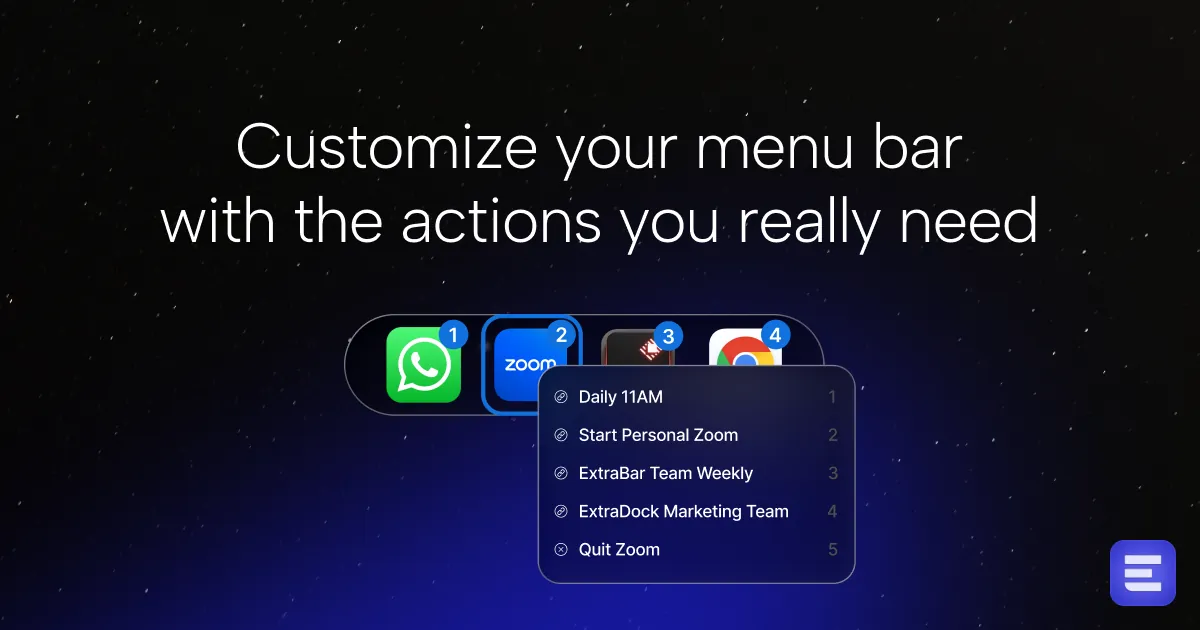
ExtraBar replaces your macOS menu bar with a keyboard-controlled command center. Add shortcuts, deep links, quick actions — no permissions needed.
TL;DR
TL;DR: ExtraBar is a macOS menu bar app that replaces the system menu bar with a customizable command center — letting you add keyboard shortcuts, deep links, scripts, and quick actions without any system permissions.
Source and Accuracy Notes
- Project page: extrabar.app — verified 2026-06-27
- HN launch thread: news.ycombinator.com/item?id=46659943 — 60 points, 2026-01-17
- License: Unknown — not disclosed on product page or HN thread
What Is ExtraBar?
ExtraBar reimagines the macOS menu bar as a keyboard-first command center. Instead of the standard Apple menu bar, you get a fully customizable bar that lives at the top of your screen, giving you instant access to:
- Shortcuts and deep links — open apps, URLs, files with a keystroke
- Quick actions — trigger scripts, automation, or shell commands
- Custom menus — organize tools and workflows your way
The key selling point: no permissions required. ExtraBar does not ask for Accessibility, Automation, or Full Disk Access — it runs entirely within standard macOS sandboxing, using the menu bar space that every macOS app already occupies.
“What if your menu bar was a keyboard-controlled command center?” — HN launch post title
Setup Workflow
Step 1: Download and Install
Download ExtraBar from the Mac App Store:
https://apps.apple.com/us/app/extrabar/id1668363952Open the app after installation. The menu bar will immediately show the ExtraBar interface.
Step 2: Configure Your Menu Bar
Click the ExtraBar icon in the menu bar to open the configuration panel. From here you can:
- Add new items via the + button
- Assign keyboard shortcuts to any item
- Import and export your configuration
Step 3: Add Your First Shortcut
- Click the + button in the ExtraBar panel
- Choose the item type: App, URL, Script, or Folder
- Fill in the target (app path, URL, or shell command)
- Assign a keyboard shortcut (e.g.
⌘ + Shift + 1) - Press Save
The item now appears in your menu bar and is accessible via its keyboard shortcut.
Step 4: Organize with Folders
Group related items into folders for a cleaner menu bar. Right-click any item and select Move to Folder, then choose or create a folder.
Key Features
Based on the product page and launch announcement:
| Feature | Description |
|---|---|
| Keyboard shortcuts | Assign global hotkeys to any menu bar item |
| Deep links | Open apps, URLs, and files directly from the menu bar |
| Script support | Trigger shell scripts and automation from menu bar items |
| Folder organization | Group items into collapsible folders |
| No permissions | Runs without Accessibility or Automation access |
| Configurable bar | Customize the appearance and layout of the bar |
Practical Evaluation Checklist
- Downloaded from Mac App Store
- Menu bar icon appears after launch
- Added at least one custom item (app shortcut, URL, or script)
- Assigned a keyboard shortcut to the item
- Tested that the shortcut works when app is in background
- Organized items into folders if using more than five items
- Verified no permissions requested in System Preferences
Security Notes
ExtraBar advertises no permissions required, which is a meaningful security posture for a menu bar app. However:
- Review any scripts you add before assigning them to ExtraBar
- Be cautious with scripts that require
sudoor modify system files - The app is distributed via the Mac App Store, which provides some sandboxing
FAQ
Q: Does ExtraBar require Accessibility permissions? A: No. Unlike many menu bar apps, ExtraBar explicitly states it requires no system permissions to function.
Q: Can I sync my configuration across Macs? A: Export your configuration from the settings panel and import it on another Mac.
Q: Does it work with macOS Sequoia and Apple Silicon? A: The app is distributed via the Mac App Store and supports standard macOS versions.
Q: Is there a free version? A: Check the Mac App Store listing for current pricing and trial options.
Conclusion
ExtraBar is a niche but useful tool for power users who want faster access to their most-used tools without leaving the keyboard. The no-permissions approach is refreshingly minimal — it trades深度 system integration for a lightweight, privacy-friendly design.
If you spend most of your day in a terminal or jumping between apps, ExtraBar can replace a dozen clicks with a single keystroke.
Source and Accuracy Notes
- Project page: extrabar.app
- HN launch thread: news.ycombinator.com/item?id=46659943
- App Store listing: apps.apple.com/us/app/extrabar/id1668363952
- License: Not specified
Related Posts
ai-setup
Recall – Persistent Memory for Claude Code via MCP Hooks
Recall gives Claude Code a permanent memory store that survives session restarts and context compaction. Four hooks capture and restore context automatically — with cloud SaaS or self-hosted options.
2/28/2026
dev-tools
Automotive Skills Suite for AI Engineering
Evaluate Automotive Skills Suite for APQP, ASPICE, HARA, safety-plan, and DIA workflows with setup notes, governance risks, and SME review guidance.
5/28/2026
dev-tools
awesome-agentic-ai-zh Roadmap Guide
Explore awesome-agentic-ai-zh as a Chinese agentic AI learning roadmap, with setup notes, track selection, study workflow, and evaluation guidance.
5/28/2026