ExtraBar – Keyboard-Controlled Menu Bar for macOS
ExtraBar turns the macOS menu bar into a keyboard-controlled command center. Zero permissions, native SwiftUI, local data. Jump to Zoom, Slack, and VS Code with keystrokes.
TL;DR
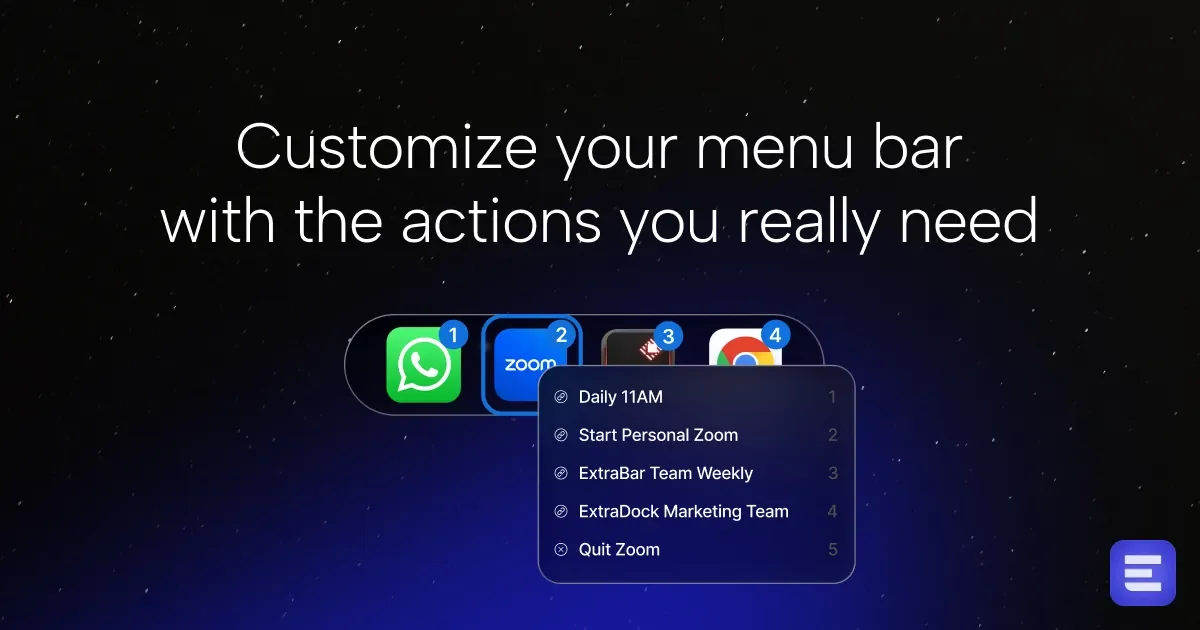
TL;DR: ExtraBar turns your macOS menu bar into a keyboard-controlled command center — launch apps, jump to Zoom calls, open Slack channels, and trigger shortcuts with keystrokes. No screen recording or accessibility permissions required, all data stays local.
Source and Accuracy Notes
- Official site: extrabar.app
- Show HN launch: 60 points
- Product Hunt: extrabar
- Author’s previous tools: DockFlow, ExtraDock
What Is ExtraBar?
The macOS menu bar is prime real estate that most of us waste. It fills up with icons for apps we rarely touch, while the actions we actually need — joining a Zoom call, opening a specific Slack channel, launching a VS Code project — require multiple clicks and menu dives.
ExtraBar solves this by replacing the static menu bar with a keyboard-controlled command center. Press a hotkey, type a number, and you’re in your next meeting. No mouse, no menu hunting, no context switching.
The tool is built by the same developer behind DockFlow (Dock management) and ExtraDock (extended Dock space). ExtraBar is the third entry in what’s becoming a cohesive macOS productivity suite.
How ExtraBar Works
Core Concept
Instead of hiding or rearranging menu bar icons like Bartender or Ice do, ExtraBar repurposes the menu bar entirely. You define custom menus tied to specific apps and actions, then access them through a keyboard-driven interface.
The workflow looks like this:
# Example: Join a Zoom meeting in 3 keystrokes
cmd+B → 2 (Zoom menu) → 4 (Personal meeting) → You're in
```bash

### Key Features

- **Custom action menus** — Build menus with the apps and actions you actually use, not what developers pre-configure
- **Full keyboard navigation** — Every action is reachable via hotkey + number, no mouse required
- **Deep linking** — Jump directly into Zoom calls, Slack channels, Figma files, Spotify playlists, or any URL
- **Apple Shortcuts integration** — Trigger any Shortcut workflow from your ExtraBar menu
- **Raycast integration** — Chain ExtraBar actions with Raycast for advanced automation
- **Import/export configs** — Share your setup or back it up as JSON

### What You Can Do

```bash
# Real-world configurations
- Jump into your next Zoom call with a keystroke
- Open specific Slack channels instantly (no menu clicking)
- Launch VS Code projects directly
- Trigger Apple Shortcuts workflows
- Custom deep links to Figma, Spotify, or any URL
- Import/export action configurations
```bash

## Setup and Configuration

### Step 1: Install ExtraBar

Download from [extrabar.app](https://extrabar.app). The app is a native macOS binary — no installer, no package manager needed. Just drag to Applications.

### Step 2: Configure Your Menus

ExtraBar ships with pre-built configurations for popular apps (Zoom, Slack, VS Code, Figma). Open the preferences panel and enable the apps you use. Each app gets its own menu with customizable actions.

### Step 3: Set Your Hotkey

Choose a global hotkey to summon ExtraBar. The default works well, but you can remap it to avoid conflicts with existing shortcuts.

### Step 4: Build Custom Actions

For apps without pre-built configs, create custom deep links:

```bash
# Example: Custom Slack channel deep link
slack://channel?team=T01234567&id=C01234567

# Example: VS Code project
vscode://file/Users/du/projects/my-app

# Example: Zoom meeting
zoommtg://zoom.us/join?confno=123456789
Deeper Analysis
ExtraBar vs Bartender vs Ice
The menu bar management space has two established players: Bartender and Ice. Both focus on hiding icons — collapsing the menu bar so only essential icons remain visible.
ExtraBar takes a fundamentally different approach. Instead of hiding what you don’t need, it replaces the menu bar with what you do need. The comparison:
| Feature | ExtraBar | Bartender | Ice |
|---|---|---|---|
| Core approach | Replace with actions | Hide icons | Hide icons |
| Permissions required | None | Screen recording | Accessibility |
| Keyboard navigation | Full | Limited | Limited |
| Deep linking | Native | No | No |
| Data storage | Local only | Local | Local |
| Price | Free tier + Pro | $16 one-time | Free (open source) |
The Permission Advantage
This is ExtraBar’s strongest differentiator. Bartender requires screen recording permissions — a significant privacy trade-off for a menu bar tool. Ice requires accessibility permissions. ExtraBar works with zero permissions out of the box.
The optional accessibility permission unlocks enhanced keyboard navigation, but the core functionality works without it. For privacy-conscious users or corporate environments where permission grants require IT approval, this matters.
Technical Architecture
ExtraBar is written in SwiftUI, making it native on both Apple Silicon and Intel Macs. The app runs entirely offline with no cloud connectivity, no telemetry, and no analytics. All configuration data is stored locally as JSON files that you can import, export, or version-control.
Practical Evaluation Checklist
- Zero permissions — Works without screen recording or accessibility access
- Native performance — SwiftUI, no Electron overhead
- Local-only data — No cloud, no telemetry, no account required
- Keyboard-first — Every action reachable without touching the mouse
- Deep linking — Works with Zoom, Slack, VS Code, Figma, Spotify, and custom URLs
- Apple Shortcuts — Trigger any Shortcut from your menu
- Raycast integration — Chain with existing automation workflows
- Import/export — Share configs or back up as JSON
- Free tier available — Try before committing to Pro
Security Notes
ExtraBar’s security model is straightforward:
- No network access required — The app functions entirely offline
- No telemetry — No usage data leaves your machine
- No account system — No credentials to store or leak
- Local JSON configs — Your action definitions are plain text files you control
- No screen recording — Unlike Bartender, ExtraBar never captures your screen
- Optional accessibility — Only needed for enhanced keyboard navigation, not core functionality
The attack surface is minimal. The app has no server component, no authentication flow, and no data transmission. Configuration files are local and can be encrypted with FileVault if needed.
FAQ
Q: Does ExtraBar work on Intel Macs? A: Yes. ExtraBar is built with SwiftUI and runs natively on both Apple Silicon and Intel Macs.
Q: Do I need to grant any permissions? A: No. ExtraBar works with zero permissions. Accessibility permission is optional and only enhances keyboard navigation — it’s not required for core functionality.
Q: Can I share my ExtraBar configuration with teammates? A: Yes. ExtraBar supports import/export of action configurations as JSON files. Configuration sharing features are also in development.
Q: How is this different from Raycast or Alfred? A: Raycast and Alfred are general-purpose launchers. ExtraBar is specifically designed for the menu bar — it replaces menu bar icons with contextual action menus. They complement each other: you can trigger Raycast commands from within ExtraBar.
Q: Is there a free version? A: Yes. ExtraBar has a free tier with core functionality. Pro features include advanced customization and priority support.
Conclusion
ExtraBar represents a shift in how we think about the macOS menu bar. Instead of treating it as clutter to be managed, it becomes a productivity surface — a keyboard-accessible command center for the actions that matter.
The zero-permission model is a genuine advantage over Bartender and Ice, especially for users in privacy-sensitive or corporate environments. The native SwiftUI implementation means no performance overhead, and the local-only data model means no account or cloud dependency.
If you spend significant time context-switching between apps on macOS, ExtraBar is worth trying. The free tier lets you test the core workflow before committing to Pro.
Related Posts
ai-setup
Recall – Persistent Memory for Claude Code via MCP Hooks
Recall gives Claude Code a permanent memory store that survives session restarts and context compaction. Four hooks capture and restore context automatically — with cloud SaaS or self-hosted options.
2/28/2026
dev-tools
Automotive Skills Suite for AI Engineering
Evaluate Automotive Skills Suite for APQP, ASPICE, HARA, safety-plan, and DIA workflows with setup notes, governance risks, and SME review guidance.
5/28/2026
dev-tools
awesome-agentic-ai-zh Roadmap Guide
Explore awesome-agentic-ai-zh as a Chinese agentic AI learning roadmap, with setup notes, track selection, study workflow, and evaluation guidance.
5/28/2026