DockFlow - Switch macOS Dock Presets Instantly
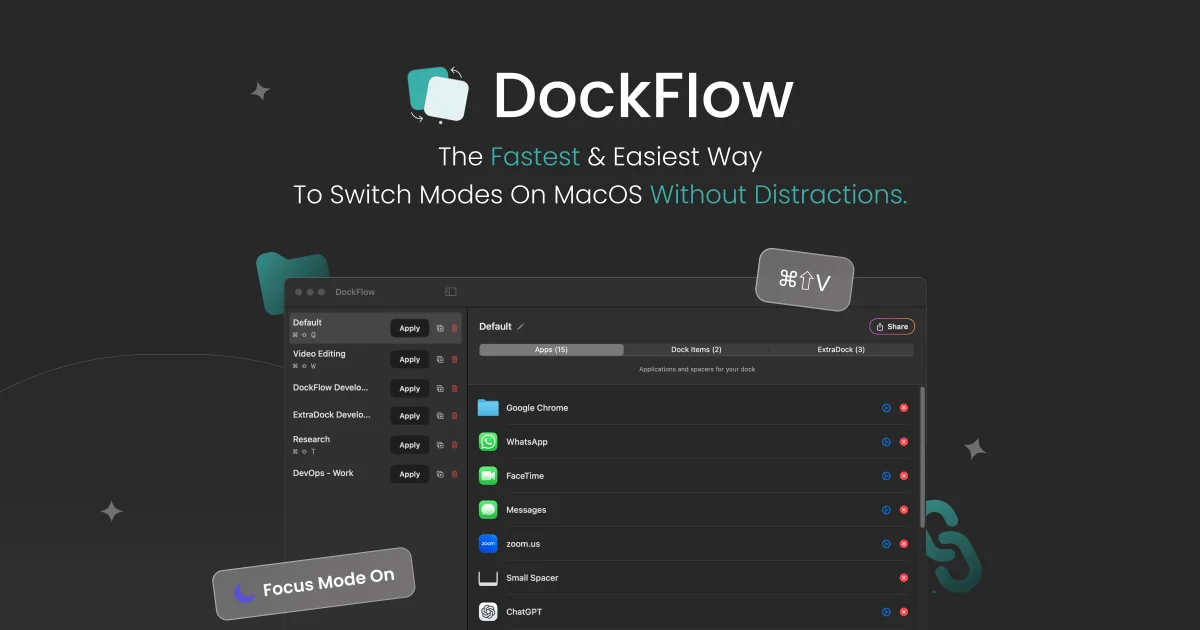
DockFlow is a macOS app that lets you save multiple Dock configurations and switch between them with custom hotkeys. Perfect for developers who juggle coding, design, and writing workflows.
TL;DR
TL;DR: DockFlow is a lightweight macOS app that saves multiple Dock configurations and lets you switch between them instantly with custom hotkeys — no more manually rearranging your Dock every time you change contexts.
Source and Accuracy Notes
- Official site: dockflow.appitstudio.com
- Show HN launch (65 points): Hacker News
- Pricing: Free to try, paid license for full features
What Is DockFlow?
macOS has a fundamental limitation: it only supports one Dock layout at a time. If you switch between coding, designing, writing, and research throughout the day, you end up constantly rearranging your Dock — adding apps, removing spacers, resizing icons. It is a small friction that compounds over hundreds of context switches.
DockFlow solves this by letting you save multiple Dock presets and switch between them with a keyboard shortcut. Each preset stores the full Dock configuration — apps, folders, spacers, and arrangement — so you can go from a minimal writing Dock to a full developer Dock in one keystroke.
The app launched on Show HN in April 2025 and gained traction from developers who recognized the problem immediately. The creator rebuilt it from a previous acquisition (ExtraDock), incorporating years of user feedback into a cleaner, more focused product.
Setup Workflow
Step 1: Install DockFlow
Download DockFlow from the official site. It is a native macOS app — no installation wizard, no dependencies. Drop it into your Applications folder and launch it.
Step 2: Create Your First Preset
Open DockFlow and you will see a list of presets. The default preset captures your current Dock state. Click the edit icon next to any preset to customize it:
# You can manage presets via the GUI, but the app also supports:
# - Adding apps by dragging from Finder or Launchpad
# - Adding folder stacks (recent items, fan view, grid view)
# - Adding spacers to group related apps
# - Reordering items by drag and drop
```bash

### Step 3: Assign Hotkeys

Each preset can have a custom keyboard shortcut. The creator recommends using single-key combinations with modifier keys:

```bash
# Example hotkey assignments:
# Cmd+Q -> Default (full Dock)
# Cmd+W -> Video Editing (Final Cut, DaVinci, etc.)
# Cmd+E -> ExtraDock Development (Xcode, Terminal, etc.)
# Cmd+T -> Research (Browser, Notes, PDF reader)
# Cmd+D -> DevOps Work (iTerm, Docker, VS Code)
Step 4: Switch Contexts
Once configured, switching is instant. Press your hotkey and the Dock rearranges itself in under a second. No relaunching apps, no manual dragging — just the Dock you need for the task at hand.
Deeper Analysis
Why This Matters for Developers
Developers are perhaps the heaviest context-switchers on a computer. A typical day might involve:
- Coding mode: Terminal, VS Code, browser with docs, Docker Desktop
- Design review mode: Figma, browser, Slack, screenshot tool
- Writing mode: Minimal Dock — just a text editor and browser
- DevOps mode: Multiple terminals, monitoring dashboards, cloud consoles
Each mode benefits from a different Dock layout. A minimal Dock reduces visual clutter when writing. A full Dock gives quick access to all your tools when coding. DockFlow makes this switching frictionless.
Technical Approach
DockFlow works by interacting with macOS’s Dock preferences system. It reads the current Dock state (stored in com.apple.dock.plist), saves it as a preset, and writes it back when you switch. The app handles the edge cases — like apps that are not installed or folders that have moved — gracefully.
The hotkey system uses macOS’s global event tap, so shortcuts work even when DockFlow is not in focus. This is essential for the workflow — you should not need to switch to the app before switching your Dock.
Comparison with Alternatives
| Feature | DockFlow | Manual Rearranging | ExtraDock |
|---|---|---|---|
| Switch speed | Instant (hotkey) | 30-60 seconds | Instant |
| Preset storage | Unlimited | None | Unlimited |
| Hotkey support | Yes | No | Yes |
| Native macOS app | Yes | N/A | Yes |
| Active development | Yes | N/A | Discontinued |
DockFlow is essentially the successor to ExtraDock (which the creator acquired). It carries forward the core functionality while improving the UI and adding features like Focus Mode.
Practical Evaluation Checklist
- Does it solve a real problem? Yes — macOS Dock limitation is universal
- Is it lightweight? Yes — native app, no Electron overhead
- Does it work reliably? Yes — uses standard macOS Dock preferences
- Is the hotkey system robust? Yes — global event tap works across all apps
- Is there a free trial? Yes — test before buying
- Does it support all macOS versions? Check the site for minimum version requirements
Security Notes
DockFlow requires Accessibility permissions to manage the Dock and register global hotkeys. This is standard for macOS apps that interact with system UI elements. The app does not require network access — all preset data is stored locally. There is no telemetry or analytics reported in the app’s privacy policy.
As with any app that modifies system preferences, review the permissions carefully. DockFlow only accesses Dock-related preferences and does not request broader system access.
FAQ
Q: Does DockFlow work on all macOS versions? A: DockFlow supports recent macOS versions. Check the official site for the minimum version requirement before purchasing.
Q: Can I share presets between Macs? A: DockFlow includes a Share feature for presets. You can export a preset and import it on another Mac running DockFlow.
Q: What happens if an app in my preset is not installed? A: DockFlow handles missing apps gracefully. The preset will include the apps that are installed and skip the ones that are not. When you install the missing app later, it will appear in the Dock on the next switch.
Q: Does DockFlow slow down my Mac? A: No. DockFlow is a lightweight native app that only activates when you press a hotkey. It does not run background processes or consume significant resources.
Q: Is there a free version? A: DockFlow offers a free trial so you can test the core functionality before purchasing a license.
Conclusion
DockFlow is a focused, well-executed solution to a problem that every macOS power user faces. It does one thing — Dock preset management — and does it well. The hotkey system is the killer feature: once you get used to switching Dock layouts with a keystroke, going back to manual rearrangement feels archaic.
If you switch between different types of work throughout the day and have ever felt frustrated by your Dock not matching your current task, DockFlow is worth trying. The free trial lets you validate the workflow before committing.
Related Posts
ai-setup
Recall – Persistent Memory for Claude Code via MCP Hooks
Recall gives Claude Code a permanent memory store that survives session restarts and context compaction. Four hooks capture and restore context automatically — with cloud SaaS or self-hosted options.
2/28/2026
dev-tools
Automotive Skills Suite for AI Engineering
Evaluate Automotive Skills Suite for APQP, ASPICE, HARA, safety-plan, and DIA workflows with setup notes, governance risks, and SME review guidance.
5/28/2026
dev-tools
awesome-agentic-ai-zh Roadmap Guide
Explore awesome-agentic-ai-zh as a Chinese agentic AI learning roadmap, with setup notes, track selection, study workflow, and evaluation guidance.
5/28/2026