Construct Computer - An AI Employee With Its Own Cloud PC
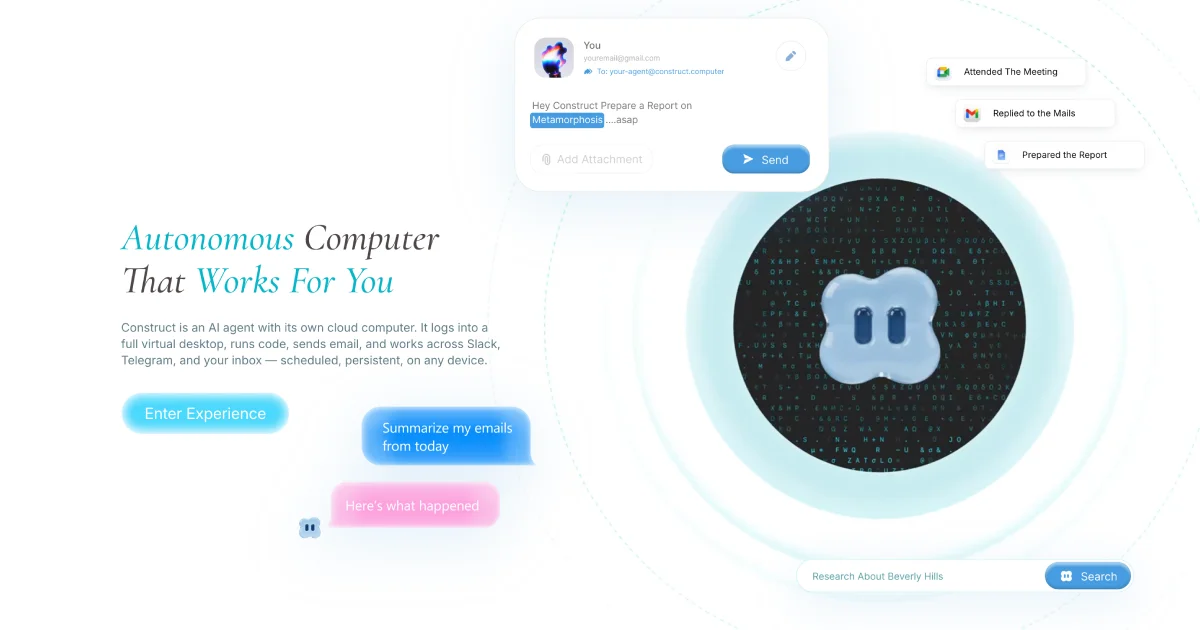
Construct Computer gives autonomous AI agents a persistent cloud desktop, an email address, and live browser access so they can run real work schedules, not just one-off API calls.
TL;DR
TL;DR: Construct Computer is a cloud OS where each AI agent is a persistent process with its own virtual desktop, email address, file system, and browser, so you can schedule a “Construct” to do multi-hour work across Slack, Gmail, Telegram, and any web app the same way a human employee would.
Source and Accuracy Notes
- Official site: https://construct.computer
- Show HN: Construct Computer - Agentic Cloud OS for Daily Work (21 points, Mar 3 2026)
- Founder video demo: @use_construct status
- The product is in active development; pricing, integration counts, and tier limits may have shifted since the launch post.
What Is Construct Computer?
Most “AI agents” today are stateless API calls. You send a prompt, the model thinks for a few seconds, the model returns text, the process ends. The next request starts from zero. There is no memory of the last session, no scheduled task list, no inbox, and no easy way to supervise what the agent is doing while it works.
Construct Computer flips that model. Every agent (the company calls them “Constructs”) is a persistent process running on a real cloud desktop. Each Construct has its own virtual machine, file system, network identity, and an email address at the form [email protected]. You can log into the desktop and watch the agent work in real time, like sitting behind a human contractor who happens to be software.
The model is meant to feel less like “calling an API” and more like “hiring an employee who has a computer.” You assign work via email, Slack, or Telegram. The Construct reads the request, opens a browser, logs into the apps it needs, does the work, and reports back when it is finished. Long-running workflows can be scheduled in advance and run without you being online.
Why This Model Is Interesting
The pitch sounds similar to a dozen other “agent” launches, but the architectural choice has real consequences.
Persistence over prompts
Because each Construct keeps running between tasks, it can hold context that a stateless wrapper would lose. A Construct that prepares your weekly report can remember the report template you preferred last time, the people you usually CC, and the tone you like. A new “agent” framework that wraps an LLM call cannot do this without an external memory store bolted on.
Real browser, not a hidden API
Constructs operate through a real Chromium instance inside their VM. They can log into Gmail, navigate Google Meet, scrape a public dashboard, or fill a Salesforce form. Tools that have no API at all are reachable, because the agent is just “using a computer” the way you would.
Supervisability
The live desktop view is the underrated feature. If the Construct goes off-script, you can take a peek, see exactly which tab it has open, and intervene. Pure background agents are a black box; a desktop you can watch is not.
Channel-agnostic input
You can email the Construct, message it on Slack, or DM it on Telegram. The Construct is reachable wherever you already are, which is the same principle that made Zapier’s email-to-zap workflow sticky.
Setup Workflow
Construct Computer is a hosted product, so setup is mostly about creating an account, picking a plan, and configuring the channels you want the Construct to use.
Step 1: Create a Construct
Sign up at construct.computer and provision a new Construct. Each Construct is a long-lived identity with an email address and a private desktop. Free and paid tiers have been mentioned in the launch post; expect the paid tier to be the one with persistence, scheduled runs, and external integrations.
Step 2: Connect your messaging channels
In the dashboard, link the channels you want the Construct to monitor. The supported channels are email, Slack, and Telegram at launch. Authentication is OAuth for Slack and Telegram; email works by giving your Construct an alias on its built-in construct.computer address or by forwarding an existing inbox.
# Example: forward a Gmail filter to your Construct's email address
# In Gmail Settings -> Filters -> Create new filter
# From: [email protected] -> Forward to: [email protected]
```bash

### Step 3: Send your first task

Once the channels are connected, send the Construct a message the way you would message a colleague. The default body is plain natural language; the Construct parses the intent, opens the apps it needs, and reports back when the task is complete.

```text
Hey Construct, summarize the three unread threads in my inbox
from today and DM me a 3-bullet digest on Telegram.
```bash

The desktop view shows the browser opening Gmail, scrolling to the unread messages, copying the relevant text, and posting the digest on Telegram. The whole interaction takes seconds.

### Step 4: Schedule recurring work

Long-running workflows are where the persistence model pays off. Use the dashboard's scheduler to tell a Construct to do a task at a fixed time, every weekday, or on a trigger. The Construct keeps its memory between runs, so it can build on prior context.

```yaml
# Example scheduler entry
name: morning-digest
cron: "0 8 * * 1-5"
prompt: |
  Read the calendar for today, list the first three meetings,
  pull any prep docs attached, and post a 5-bullet briefing
  to my Telegram at 08:00 local time.
channel: telegram
Step 5: Audit and intervene
The live desktop is the supervision layer. If a Construct’s behavior drifts, open the desktop, look at the open tabs, and either send a corrective message or pause the run. The desktop is also where you can manually take over for a step the agent cannot complete and hand control back when it is unstuck.
How It Compares
| Approach | Persistence | Real browser | Supervisability | Channel input |
|---|---|---|---|---|
| Construct Computer | Persistent process | Yes (Chromium) | Live desktop | Email, Slack, Telegram |
| OpenAI Operator | Session-scoped | Yes (managed) | Step-by-step screenshots | Single web UI |
| Manus / Devin | Session-scoped | Yes (managed) | Task log | Web UI only |
| LangGraph / CrewAI agents | App-defined | App-defined | Logs / traces | App-defined |
| Custom Playwright bot | Process-lifetime | Yes | Screenshots / video | Code only |
The differentiator is the combination of persistence, real browser, supervisable desktop, and multi-channel input. Most other tools pick two of the four; Construct Computer tries to give you all four.
Practical Evaluation Checklist
Before adopting Construct Computer for real work, run it through this list:
- Cost per Construct per month: hosted agent desktops are not cheap to operate; check the unit economics against a human hour
- Data residency: each Construct lives in a specific region; confirm the region matches your compliance posture
- Integration count: the launch post mentions a “vast ecosystem” of business tools; verify the specific apps you depend on are wired in
- Audit logs: the desktop view is great for one Construct; for many, you want a structured event log you can ship to your SIEM
- Failure modes: what happens when a Construct’s browser gets a CAPTCHA it cannot solve? Is there an escalation path back to a human?
Security Notes
- Each Construct runs in an isolated VM, but the same shared hosting plane underlies them; treat the desktop as a low-trust environment
- The Construct’s email address is a real mailbox; rotate credentials for any third-party account it uses
- The browser is Chromium with the default extension set; do not install arbitrary extensions on a Construct’s desktop from your side
- Schedule logs and clipboard contents are visible to Construct Computer operators for debugging; check their retention policy before sending regulated data
- For sensitive workflows, restrict the Construct to a read-only role in third-party apps and review its actions before approving any side-effecting change
FAQ
Q: Is Construct Computer open source? A: No, it is a hosted product. The launch post and product page do not mention a self-hosted build. The underlying pieces (a Linux VM, Chromium, an LLM client) are standard, but the orchestration layer and the desktop UI are proprietary.
Q: Can the Construct install its own software? A: In principle, yes; each Construct has its own VM and root access inside it. In practice, this is gated by what the agent decides to install. Treat any software a Construct pulls in as low-trust, the same way you would treat software a contractor’s laptop pulls in.
Q: How does it handle CAPTCHAs and bot-protected sites? A: The launch post does not give specifics. Real desktop Chromium sessions hit CAPTCHAs often, and some sites fingerprint headless or hosted browsers. Plan to be available for an occasional handoff when the Construct gets stuck.
Q: Can I run multiple Constructs at once? A: Yes. Each Construct is a separate identity and runs in its own VM. The dashboard is the management plane for the whole fleet.
Q: What model powers the Construct? A: The launch post does not name the underlying model. Expect the choice to change over time; persistence and orchestration are the product, the model is the implementation detail.
Q: Can I bring my own LLM API key? A: Not mentioned at launch. If bring-your-own-key is a hard requirement, ask the team before signing up.
Q: How is this different from a remote desktop plus an LLM agent script? A: In practice, that is roughly what it is, plus the channel integration, plus the live desktop view, plus the scheduler, plus the prompt-aware identity. The product is the integration story, not any one of those pieces.
Conclusion
Construct Computer is one of the more thoughtful “agent OS” pitches to land on Show HN recently. The persistence-plus-desktop combination is the right shape for work that takes longer than a single chat turn, and the channel-agnostic input lowers the friction of handing off tasks. The open questions are cost, model choice, and how well it handles real-world bot-protected sites, all of which will become clearer as more users put it through its paces. If you have repetitive work that a remote contractor would happily automate, this is one of the cleaner ways to try that pattern without standing up the entire stack yourself.
Related Posts
ai-setup
Recall – Persistent Memory for Claude Code via MCP Hooks
Recall gives Claude Code a permanent memory store that survives session restarts and context compaction. Four hooks capture and restore context automatically — with cloud SaaS or self-hosted options.
2/28/2026
dev-tools
Automotive Skills Suite for AI Engineering
Evaluate Automotive Skills Suite for APQP, ASPICE, HARA, safety-plan, and DIA workflows with setup notes, governance risks, and SME review guidance.
5/28/2026
dev-tools
awesome-agentic-ai-zh Roadmap Guide
Explore awesome-agentic-ai-zh as a Chinese agentic AI learning roadmap, with setup notes, track selection, study workflow, and evaluation guidance.
5/28/2026