boringBar Review - Taskbar Replacement for macOS
boringBar replaces the macOS Dock with a desktop-aware taskbar featuring window previews, pinned apps, notification badges, and one-click desktop switching. 14-day free trial available.
TL;DR
TL;DR: boringBar replaces the macOS Dock with a taskbar that organizes windows by desktop, adds thumbnail previews, pinned apps, notification badges, and instant desktop switching — $29.99 perpetual or $7.99/year after a 14-day free trial.
Source and Accuracy Notes
- Project page: boringbar.app
- HN launch thread: news.ycombinator.com/item?id=47742200
- Pricing verified from: boringbar.app (inline structured data and FAQ section)
What Is boringBar?
boringBar is a macOS utility that acts as a Dock replacement. While the native Dock shows your apps, it does not tell you how your windows are spread across desktops and displays. boringBar fills that gap with a taskbar-style bar that groups windows by desktop space.
The project launched on Hacker News in April 2026 and reached 520 points, with users praising the clean design and the desktop-aware window management approach.
Key Features
Desktop-Aware Window Organization
boringBar shows only the windows on the active desktop for each display. This keeps your focus on what is actually in front of you, rather than a flat list of every open app.
Window Thumbnail Previews
Hover over any window chip to see a live thumbnail preview. This uses macOS Screen Recording permission solely to fetch window thumbnails — the purple dot in Control Center only appears during thumbnail fetches.
Desktop Switcher
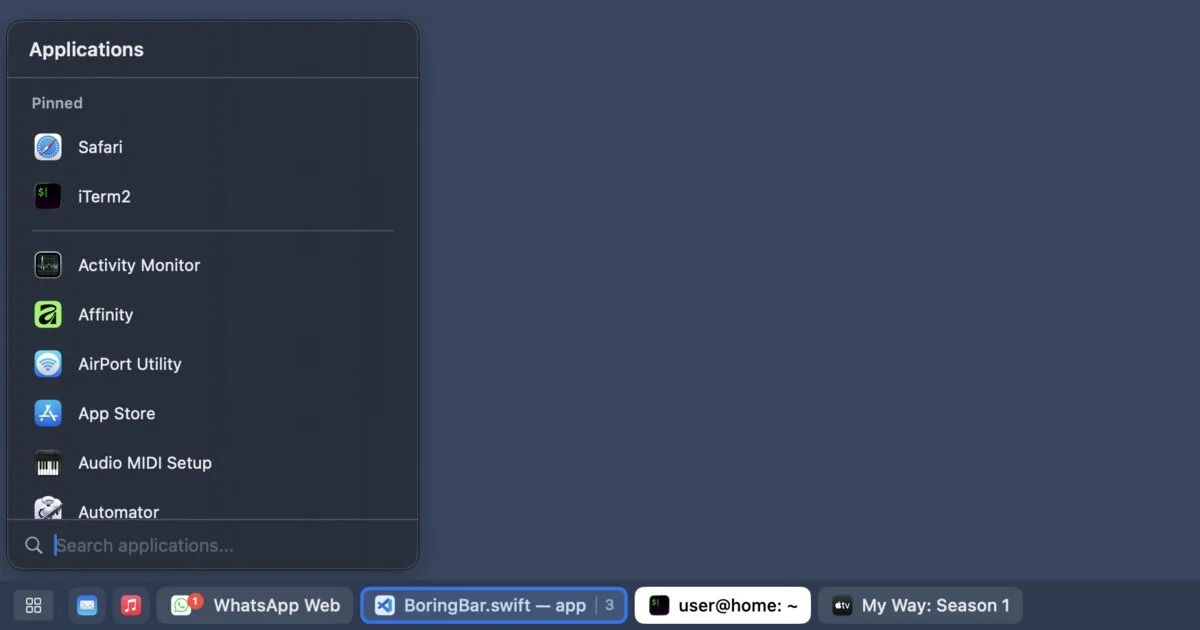
Jump to any desktop on the current display with one click. Each desktop chip shows how many windows are open on that space, so you know where to look before switching.
App Launcher
Search and launch apps from a single list. Assign a configurable global shortcut to open it instantly, similar to Spotlight but focused on app launching.
Notification Badges and Attention Pulse
Unread notification badges from macOS appear directly on window chips. When an app needs your attention, its chip shows a subtle pulse animation.
Additional Features
- Scroll to switch desktops — scroll up or down on the bar to move between desktops (direction configurable)
- Adjustable bar size — small, medium, or large
- Group windows by app — collapses multiple windows into one chip with a count badge
- Toggle chip titles — hide app name text while keeping icons and window count badges
- Window or app names — show full window titles or just app names
- Hide dock — keeps the Dock out of the way while boringBar runs
- Show on all displays — mirror bars across multiple monitors
- Pin apps — right-click any app to pin it to the bar or the application menu
- Show Desktop shortcut — right-click the bar or click the ribbon at the far right edge
Pricing
boringBar offers a 14-day free trial with all features unlocked. After the trial, a license is required.
Personal Licenses
| Type | Price | Devices | Details |
|---|---|---|---|
| Perpetual | $29.99 one-time | 2 devices | 1 year of support and updates included. Software keeps working after that. |
| Yearly | $7.99/year | 1-5 devices | Additional devices at $2/year each, up to 5. |
Business Licenses
Business licenses are billed annually, start at 6 users, and use volume pricing:
| Quantity | Price per user/year |
|---|---|
| First 1 | $3.49 |
| 2-20 | $3.50 |
| 21-50 | $2.50 |
| 51-100 | $2.00 |
| 100+ | $1.00 |
Example: a 6-user business license costs $20.99/year, a 20-user license is $69.99/year.
System Requirements
- macOS 14+ (Sonoma or later)
- Accessibility permission — to observe and interact with windows, desktops, and apps
- Screen Recording permission — used solely for window thumbnail previews
Who Is boringBar For?
boringBar makes the most sense if you:
- Use multiple macOS desktops (Spaces) regularly
- Work with many windows open across different projects
- Want a Windows/Linux-style taskbar experience on macOS
- Use multiple monitors and want consistent window management
- Find Mission Control too slow for frequent desktop switching
If you mostly keep a single desktop and a handful of apps, the native Dock may be sufficient.
Practical Evaluation Checklist
Before purchasing, consider:
- Do you use macOS Spaces/desktops actively?
- Do you work with more than 5-6 windows simultaneously?
- Is the 14-day trial long enough to test your workflow?
- Does the perpetual license model (2 devices, 1 year updates) fit your upgrade cycle?
- Are you comfortable granting Accessibility and Screen Recording permissions?
Security Notes
boringBar requires two macOS permissions that deserve attention:
-
Accessibility — this is a broad permission that lets the app observe and interact with other apps on your behalf. boringBar uses it to read window lists, desktop spaces, and app states. Review Apple’s documentation on what this permission allows.
-
Screen Recording — used only for thumbnail previews. The app developers state the purple recording indicator only appears during thumbnail fetches. You can verify this in Control Center.
Both permissions are standard for window management utilities on macOS (similar apps like Magnet, Rectangle, and AltTab require the same). The app is made by BoringBar LLC, a registered company with published terms of service and privacy policy.
FAQ
Q: Does boringBar completely replace the Dock?
A: boringBar can hide the Dock while it is running, but the Dock remains visible in Mission Control. When you turn off the feature or quit boringBar, the Dock returns immediately.
Q: What happens after the 1-year update period on the perpetual license?
A: The software keeps working indefinitely. You just will not receive further updates or support unless you renew.
Q: Can I use one license on multiple Macs?
A: The perpetual license covers 2 devices. The yearly license covers 1 to 5 devices depending on what you purchase. Each seat is linked to one device, and multiple users on the same machine share a single seat.
Q: Is there a free version?
A: There is a 14-day free trial with all features unlocked. After that, a license is required to continue using the app.
Q: Does boringBar work with external displays?
A: Yes. It supports showing bars on all displays, including setups where “Displays have separate Spaces” is turned off in System Settings.
Conclusion
boringBar fills a real gap in macOS window management for power users who rely on multiple desktops. The desktop-aware taskbar approach is more intuitive than the native Dock for tracking windows across Spaces, and the thumbnail previews add a nice visual confirmation before switching.
At $29.99 perpetual (2 devices) or $7.99/year, it is competitively priced against other macOS utilities. The 14-day trial gives you enough time to test it in your actual workflow before committing.
If you live in macOS Spaces and want a more traditional taskbar experience, boringBar is worth trying during the free trial period.
Related Posts
ai-setup
Recall – Persistent Memory for Claude Code via MCP Hooks
Recall gives Claude Code a permanent memory store that survives session restarts and context compaction. Four hooks capture and restore context automatically — with cloud SaaS or self-hosted options.
2/28/2026
dev-tools
Automotive Skills Suite for AI Engineering
Evaluate Automotive Skills Suite for APQP, ASPICE, HARA, safety-plan, and DIA workflows with setup notes, governance risks, and SME review guidance.
5/28/2026
dev-tools
awesome-agentic-ai-zh Roadmap Guide
Explore awesome-agentic-ai-zh as a Chinese agentic AI learning roadmap, with setup notes, track selection, study workflow, and evaluation guidance.
5/28/2026