boringBar - A Mac Taskbar That Replaces the Dock
boringBar is a Mac taskbar that shows only the windows on your current desktop with previews, app pinning, and instant desktop switching — a true Dock alternative.
TL;DR
TL;DR: boringBar is a macOS taskbar that replaces the Dock, showing only the windows on your active desktop with thumbnails, a desktop switcher, pinned apps, and a searchable app launcher. It is built for ex-Windows and ex-Linux users who want window management that feels like a traditional taskbar.
Source and Accuracy Notes
- Product page: https://boringbar.app
- Show HN thread (520 points, 131 comments): news.ycombinator.com/item?id=47742200
- Pricing was changed mid-discussion: the original launch post mentioned subscription pricing, but the founder later switched to a perpetual license after community feedback (see “Pricing” section below).
What Is boringBar?
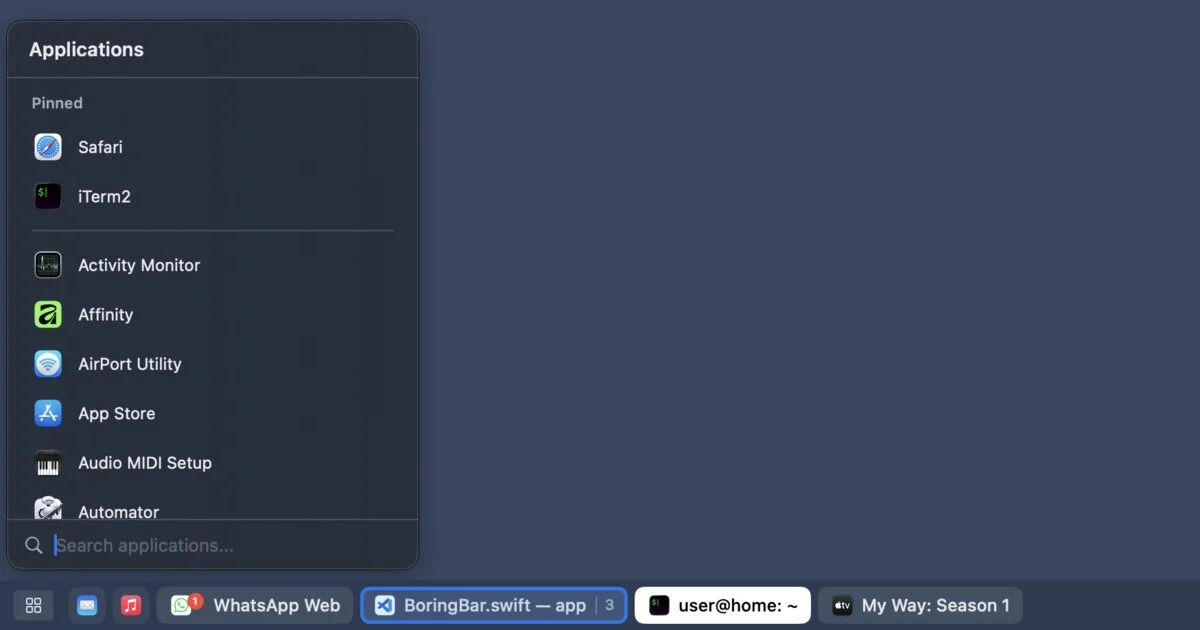
boringBar is a third-party Mac menu bar utility that sits at the top or bottom of the screen and shows only the windows you have open on the current desktop. Unlike the macOS Dock, which mixes running apps from every Space and display, boringBar scopes itself to the active Space on the active display. Each open window becomes a “chip” with the app icon, optional title, and (optionally) a notification badge.
It also acts as a desktop switcher: scroll up or down on the bar to move between Spaces, or click a numbered indicator to jump to a specific Space. The app launcher (opened with a configurable global shortcut) lists every installed app in a searchable menu, so the bar doubles as a Spotlight replacement for app launching.
The author, a-ve, built it after switching from a Fedora/GNOME laptop to a MacBook Air. The pitch is to people who liked the GNOME 2 / Windows 7 taskbar model and find the macOS Dock’s “all apps from all Spaces” approach hard to scan.
Key Features
| Feature | What it does |
|---|---|
| Current desktop only | Shows only windows on the active Space for the active display — no global mix |
| Desktop switcher | Click to jump to any Space, with a window count badge on each |
| Scroll to switch desktops | Two-finger scroll on the bar moves between Spaces |
| App launcher | Searchable menu of all installed apps, opened with a global shortcut |
| Window previews | Hover a chip to see a thumbnail of the window before switching |
| Notification badges | Unread badges from macOS appear on the chip |
| Attention pulse | A chip pulses subtly when an app needs your attention |
| Pin apps | Right-click an app to pin it to the bar or to the top of the app launcher |
| Adjustable size | Small, medium, or large bar |
| Group by app | Collapse multiple windows from one app into a single chip with a count |
| Hide the Dock | Optional: hide the system Dock while boringBar is running |
| Show on all displays | Mirror the bar across multiple monitors |
| Show Desktop | Right-click the bar (or click the ribbon at the far right) to reveal the desktop |
Setup Workflow
Step 1: Download and install
# Pull the latest release directly from the boringbar.app homepage
open https://boringbar.app
# Click "Download 14-day free trial" and move boringBar.app to /Applications
```bash

The app requires macOS 14 (Sonoma) or later. The 14-day trial unlocks all features; a license is required to keep using it after the trial.

### Step 2: Grant required permissions

boringBar needs two macOS permissions:

```bash
# Both permissions are set in System Settings > Privacy & Security
# 1. Accessibility — required to read window/desktop state and switch apps
# 2. Screen Recording — used only to fetch window thumbnail previews
```bash

To verify Screen Recording is not being abused, watch the purple "screen recording" dot in Control Center. Per the boringBar FAQ, the dot only appears when thumbnails are being fetched — not at any other time.

### Step 3: Configure the bar

Open the boringBar settings to pick:

```bash
# Recommended starter config:
# - Position: bottom (matches the macOS Dock)
# - Bar size: medium
# - Group windows by app: on
# - Show chip titles: off (icons + count only)
# - Hide system Dock: on
# - Global shortcut for app launcher: Cmd+Shift+Space
```bash

### Step 4: Migrate from the Dock

If you have been using the macOS Dock as your primary navigation, the migration path is:

```bash
# 1. Hide the Dock while boringBar runs (settings > Hide Dock)
# 2. Pin your most-used apps in boringBar (right-click any app chip > Pin)
# 3. Replace Spotlight for app launching by remapping the app launcher shortcut
# 4. Use scroll-on-bar instead of Ctrl+Arrow for desktop switching
After a few hours, the muscle memory transfers. The biggest win is that you can see exactly which windows are on which Space without entering Mission Control.
Deeper Analysis
Why the macOS Dock feels wrong for ex-Windows users
The macOS Dock is one of two UI elements that does not match the conventions of any other major desktop OS. Windows, GNOME, and KDE all default to a taskbar that shows open windows scoped to the current desktop. macOS instead shows every running app from every desktop in a single icon list, and the only way to see per-window organization is Mission Control (F3 or three-finger swipe up).
For users who came to macOS from Windows or Linux, this is a constant paper cut. You glance at the Dock, see Safari, and have to click into Mission Control to find out which of your three Safari windows is the one you want. boringBar solves this by adopting the Windows / GNOME mental model directly: chips on the bar map one-to-one to open windows on the current Space.
How boringBar compares to the existing ecosystem
Several projects target the same problem:
- sketchybar / yabai + sketchybar — a free, highly configurable status bar. Powerful but requires writing Lua/JSON config and is more developer-oriented. boringBar trades flexibility for a polished out-of-box experience.
- Aerospace — a tiling window manager for macOS that adds keyboard-driven layouts. Pairs well with sketchybar but the learning curve is high.
- uBar — the closest commercial competitor, a Dock replacement with grouped windows. boringBar is positioned as a more modern, native-looking alternative.
- Raycast / Alfred — app launchers, not taskbars. They do not show running windows.
The most common comment pattern in the HN thread was that power users can already build this with sketchybar + Aerospace for free, and that the boringBar value is the polished UX and the fact that it works out of the box without any scripting.
Privacy and Screen Recording
The Screen Recording permission is the one that gives Mac users pause. boringBar uses it only to capture window thumbnails for the hover-preview feature, and the team has published a verifiability check (the purple dot in Control Center only appears when thumbnails are being fetched). Still, for users who want a no-Screen-Recording setup, the thumbnail preview can be disabled in settings — boringBar works fine without it, just without the hover-preview feature.
Practical Evaluation Checklist
Before installing, check that boringBar fits your setup:
- You are on macOS 14 (Sonoma) or later
- You use multiple Spaces / desktops regularly
- You want per-desktop window organization (not the global Dock model)
- You are willing to grant Accessibility and Screen Recording permissions
- You prefer a polished GUI over scripting sketchybar / yabai yourself
- $29.99 perpetual or $7.99/year subscription fits your budget
- You do not depend on Dock-specific features like Stacks or the recent-apps section
If five or more of those check out, boringBar is worth a 14-day trial.
Security Notes
- Two macOS permissions required: Accessibility and Screen Recording. Both are powerful; the developer has documented that Screen Recording is only used for thumbnail capture, and the Control Center purple dot is the live signal.
- Closed source: The app is a paid product with no public source. Users trusting it for daily window management should review the privacy policy and the FAQ’s permission section before granting both permissions.
- Activation key: Personal licenses use a one-time activation key sent by email; business licenses use a 6-digit code. boringBar LLC stores the email and license seat count.
- No telemetry documentation is published on the product page as of writing — worth confirming with the developer if this matters to you.
FAQ
Q: Does boringBar replace the macOS Dock completely? A: It can hide the Dock while running, but the Dock still appears in Mission Control. When you quit boringBar or turn off the hide feature, the Dock comes back. The system Dock cannot be uninstalled.
Q: How much does boringBar cost? A: Personal perpetual is $29.99 for 2 devices, with 1 year of updates included (the app keeps working after that). Personal yearly is $7.99/year for 1 device, plus $2/year per additional device up to 5. Business licenses start at 6 users, billed annually, with volume pricing down to $1/user/year at scale.
Q: What macOS permissions does boringBar need? A: Accessibility, used to observe and interact with windows, desktops, and apps on your behalf. Screen Recording, used only to fetch window thumbnail previews. The purple “screen recording” indicator in Control Center only lights up when thumbnails are being captured.
Q: Is there a free trial? A: Yes — 14 days with all features unlocked. A license is required after the trial ends.
Q: How does boringBar compare to sketchybar or yabai? A: sketchybar and yabai are free, open-source, and highly configurable, but require writing Lua/JSON config. boringBar is a paid, GUI-configured alternative aimed at users who want the same taskbar model without scripting. Power users who already have a sketchybar setup will not gain much from switching.
Q: Does it work on multiple displays? A: Yes. boringBar can mirror across all displays, and it supports setups where “Displays have separate Spaces” is disabled in System Settings.
Q: Can I pin apps to the bar? A: Yes — right-click any app chip and choose Pin. Pinned apps stay on the bar even when they have no open windows. You can also pin apps to the top of the app launcher menu.
Q: Does boringBar support keyboard navigation? A: The app launcher has a configurable global shortcut. The bar itself supports scroll-to-switch-Spaces. For full keyboard-driven window management, pair boringBar with a tiling WM like Aerospace.
Conclusion
boringBar is a well-scoped Mac utility that fills a real gap: the macOS Dock’s “all apps from all Spaces” model does not match the taskbar mental model most people carry from Windows or Linux. boringBar implements that model with a polished GUI, sensible defaults, and a fair perpetual-license price. The 14-day trial is the right way to evaluate it — if you have been quietly missing a per-Space taskbar, this is the closest thing to it on macOS in 2026.
Related Posts
ai-setup
Recall – Persistent Memory for Claude Code via MCP Hooks
Recall gives Claude Code a permanent memory store that survives session restarts and context compaction. Four hooks capture and restore context automatically — with cloud SaaS or self-hosted options.
2/28/2026
dev-tools
Automotive Skills Suite for AI Engineering
Evaluate Automotive Skills Suite for APQP, ASPICE, HARA, safety-plan, and DIA workflows with setup notes, governance risks, and SME review guidance.
5/28/2026
dev-tools
awesome-agentic-ai-zh Roadmap Guide
Explore awesome-agentic-ai-zh as a Chinese agentic AI learning roadmap, with setup notes, track selection, study workflow, and evaluation guidance.
5/28/2026