AnythingLLM – Own Your Private Desktop AI Assistant
A full-featured local AI app with document chat, AI agents, multi-user support, and MCP compatibility. Works with any LLM, no setup required.
TL;DR
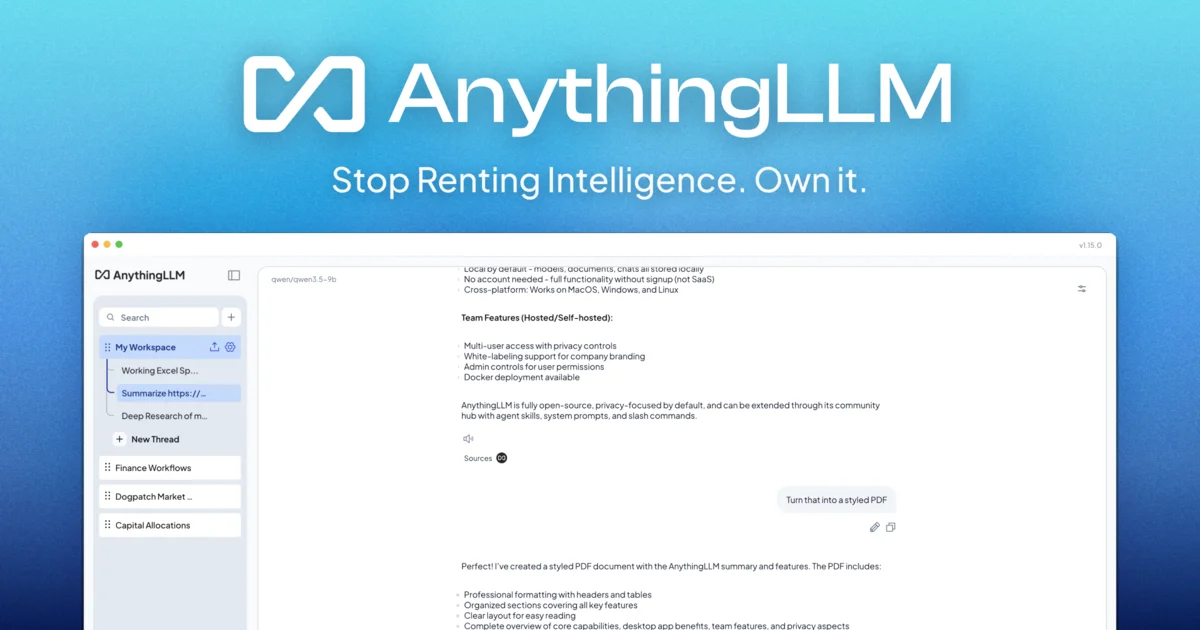
TL;DR: AnythingLLM is an open-source desktop AI assistant that runs locally, supports multiple LLMs, lets you chat with your documents, and ships with built-in agents — all in one app with zero frustrating setup.
Source and Accuracy Notes
- Project page: anythingllm.com ← visited and verified
- Source repository: github.com/Mintplex-Labs/anything-llm ← README read end-to-end
- License: MIT ← verified in repo
- HN launch thread: news.ycombinator.com/item?id=41457633 ← 368 points
What Is AnythingLLM?
AnythingLLM is an open-source desktop AI application built by Mintplex Labs. It is a private, self-hosted alternative to renting ChatGPT or similar hosted AI services — you own the infrastructure and your data never leaves your machine by default.
The official tagline from the README:
“Stop renting your intelligence. Own it with AnythingLLM.”
The app ships as a single download for Mac, Windows, and Linux, and supports:
- Document chat — ingest PDFs, TXT, DOCX, and other files, then ask questions with full source citations
- AI Agents — no-code builder to create agents that browse the web, run tasks, and use tools
- Dynamic Model Routing — automatically picks the best LLM for a given conversation based on rules you define
- Multi-user support — permissioned workspaces for teams (Docker version)
- MCP compatibility — connect to any Model Context Protocol server
- Scheduled Tasks — cron-based prompts with full agent capabilities
- Custom Embeddable Chat widget — drop a chat UI into your website (Docker version)
Setup Workflow
Step 1: Download and Install
Download the latest release for your platform from the official site:
# No install script needed — download from https://anythingllm.com/download
# Releases also available on GitHub:
# https://github.com/Mintplex-Labs/anything-llm/releases
```bash

### Step 2: Choose Your LLM Provider

AnythingLLM connects to virtually any LLM. On first launch, you configure a provider. Supported categories include:

| Provider type | Examples |
|---|---|
| Open-source (local) | Ollama, LM Studio, LocalAI, KoboldCPP, Docker Model Runner |
| OpenAI-compatible | OpenAI, Azure OpenAI, DeepSeek, Mistral, Groq, Cohere |
| Cloud AI | Anthropic Claude, Google Gemini, AWS Bedrock, NVIDIA NIM |

For a fully local setup, pair AnythingLLM with [Ollama](https://ollama.ai/) running on the same machine.

### Step 3: Ingest Your Documents

1. Create a new **Workspace** in the sidebar
2. Drag and drop PDF, TXT, DOCX, or other supported files into the workspace
3. AnythingLLM chunks, embeds, and indexes the documents automatically
4. Ask questions — responses include inline citations pointing to the source

The embedder model is configurable. Options include the AnythingLLM native embedder (default, no API key needed), OpenAI, Azure OpenAI, Gemini, Ollama, LM Studio, Cohere, Voyage AI, and Mistral.

### Step 4: Set Up Agents (Optional)

Agents let AnythingLLM take actions beyond answering questions — browse the web, call APIs, run code.

```bash
# Agents are configured via the UI at:
# Settings → Agents → Create new Agent
The no-code agent builder lets you define:
- Tools — web search, code execution, file read/write, custom MCP tools
- Trigger conditions — keyword-based or intent-based
- Memory management — automatic and user-managed memories let the agent retain context across sessions
Intelligent Skill Selection claims to reduce token usage by up to 80 percent per query by picking only the tools relevant to the current request.
Deeper Analysis
What Makes AnythingLLM Different
The desktop AI assistant space is crowded. Here is how AnythingLLM positions itself:
- Zero-config local mode — no Docker required for basic use. The desktop app bundles everything for single-machine use.
- Production-ready multi-user — the Docker build adds workspace-level permissions, making it viable for small teams without a separate auth system.
- Multi-modal — both closed (Claude, Gemini) and open-source (LLaVA-compatible) vision models are supported.
- Agent-native from day one — agents are a first-class feature, not an afterthought plugin.
Vector Database Options
AnythingLLM supports multiple vector backends so you are not locked into one:
- LanceDB (default, embedded, no server needed)
- Pinecone
- Chroma
- Qdrant
- Weaviate
LanceDB being the default is notable — it keeps the setup simple for solo users while allowing an upgrade path to cloud-hosted vectors for team deployments.
Practical Evaluation Checklist
- Downloaded and launched on macOS / Windows / Linux
- Connected to at least one LLM (local Ollama or cloud provider)
- Ingested a PDF and asked a question with citation
- Created a simple agent with one tool
- Explored workspace permissions (Docker multi-user mode)
- Tested MCP server connection if applicable
Security Notes
- Data privacy — all document processing and LLM calls can stay on your local machine. No data is sent to AnythingLLM’s servers unless you explicitly use their hosted “Mintplex” instance.
- API keys — if you connect cloud LLM providers, API keys are stored locally in the app’s config, not on a remote server.
- Multi-user isolation — in Docker deployments, workspace-level permissions prevent cross-workspace data leakage.
FAQ
Q: Does AnythingLLM require a GPU? A: It depends on which LLM you use. If you connect to a cloud LLM (OpenAI, Anthropic, etc.), no GPU is needed. If you run a local open-source model via Ollama or LM Studio, a GPU significantly improves performance but CPU inference is possible for smaller models.
Q: What is the difference between the desktop app and the Docker version? A: The desktop app is for single-user, single-machine use with no additional setup. The Docker version adds multi-user support, workspace permissions, and the embeddable chat widget. Both share the same core features.
Q: Can I use my own vector database? A: Yes. While LanceDB is the default, AnythingLLM supports Pinecone, Chroma, Qdrant, and Weaviate as drop-in replacements via the workspace settings.
Q: How does agent memory work? A: AnythingLLM has both Automatic Memory (the LLM decides what to remember) and User Managed Memories (you explicitly tell the agent facts to retain). Memories persist across sessions.
Q: Is there an API? A: Yes. AnythingLLM exposes a full developer API for custom integrations — workspace management, document ingestion, and chat are all programmable.
Conclusion
AnythingLLM fills the gap between “I want to chat with my documents privately” and “I do not want to wire together six different tools.” The all-in-one approach means less time configuring and more time using. For developers who want full ownership of their AI stack, it is one of the most complete open-source options available.
If you want a local-first ChatGPT alternative that also handles agents, multi-user, and document RAG in a single app, AnythingLLM is worth a look.
Project page: anythingllm.com | GitHub: Mintplex-Labs/anything-llm (64,746 stars, MIT license)
Related Posts
ai-setup
Recall – Persistent Memory for Claude Code via MCP Hooks
Recall gives Claude Code a permanent memory store that survives session restarts and context compaction. Four hooks capture and restore context automatically — with cloud SaaS or self-hosted options.
2/28/2026
dev-tools
Automotive Skills Suite for AI Engineering
Evaluate Automotive Skills Suite for APQP, ASPICE, HARA, safety-plan, and DIA workflows with setup notes, governance risks, and SME review guidance.
5/28/2026
dev-tools
awesome-agentic-ai-zh Roadmap Guide
Explore awesome-agentic-ai-zh as a Chinese agentic AI learning roadmap, with setup notes, track selection, study workflow, and evaluation guidance.
5/28/2026