agent-desktop – Native Desktop Automation CLI for AI Agents
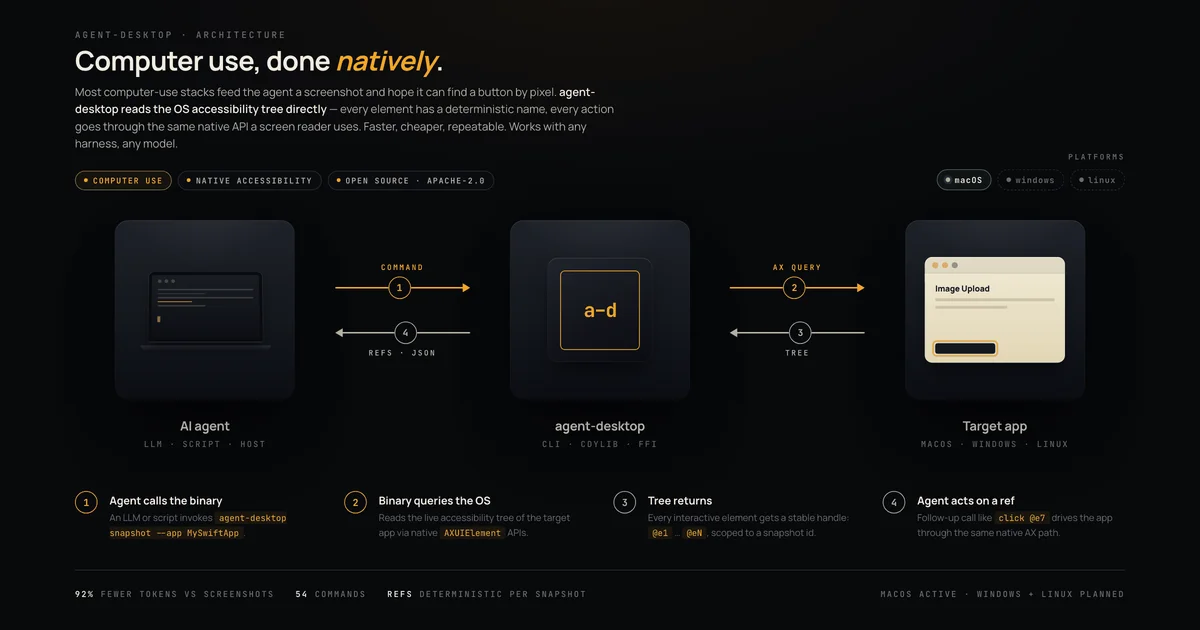
Give AI agents structured access to any macOS app via the accessibility tree—no screenshots, no pixel matching, just 78–96% token savings vs full-tree dumps.
TL;DR
TL;DR: agent-desktop is a Rust CLI that exposes native macOS apps through their accessibility tree, letting AI agents inspect and control any desktop application without screenshots or vision models.
Source and Accuracy Notes
- Project page: github.com/lahfir/agent-desktop
- Source repository: github.com/lahfir/agent-desktop
- License: Apache-2.0 (verified via LICENSE file)
- HN launch thread: news.ycombinator.com/item?id=47982708
What Is agent-desktop?
Most AI computer-use tools work the same way: screenshot the screen, feed pixels to a vision model, predict x/y coordinates, click, repeat. This is slow, expensive, and fragile — a UI that shifts a few pixels breaks the entire loop.
agent-desktop takes a different approach. Instead of guessing from pixels, it reads the OS’s own accessibility tree — the same structured UI data that screen readers have used for decades on macOS, Windows, and Linux.
The README describes it as:
agent-desktop is a native desktop automation CLI designed for AI agents, built with Rust. It gives structured access to any application through OS accessibility trees — no screenshots, no pixel matching, no browser required.
Setup Workflow
Step 1: Install
npm install -g agent-desktop
```bash

This downloads the prebuilt Rust binary (about 15 MB) with no runtime dependencies.

Or run without installing:

```bash
npx agent-desktop snapshot --app Finder -i
```bash

From source requires Rust 1.89+ and macOS 13.0+:

```bash
git clone https://github.com/lahfir/agent-desktop
cd agent-desktop
cargo build --release
cp target/release/agent-desktop /usr/local/bin/
```bash

### Step 2: Grant Accessibility Permissions

On first run, macOS will prompt for Accessibility permission (required to read the accessibility tree). agent-desktop will also request Screen Recording and Automation permissions as needed. Plain permission checks never prompt on their own — missing permissions are requested through a bounded isolated helper.

### Step 3: Run Your First Snapshot

```bash
agent-desktop snapshot --app Finder -i --compact
```bash

The `--compact` flag enables progressive skeleton traversal — a shallow tree (depth 3) with deeper containers truncated and annotated with `children_count`. A named container like a sidebar gets a reference ID (`@s8f3k2p9:e1`) so the agent can drill into exactly that region later.

### Step 4: Interact with Elements

```bash
agent-desktop click @e12
agent-desktop type @e5 "ship it"
agent-desktop press cmd+return
```bash

Element references like `@e12` are deterministic — they encode role, path, stable text, and bounds hash. Before every action, the ref is re-resolved against the live UI. If the UI changed, the agent gets a `STALE_REF` error instead of a misclick.

## Deeper Analysis

### Why the Accessibility Tree Beats Screenshots

The OS already knows the semantic structure of every UI element: role, name, actions, focus, selection, and state. The README calls pixel-based control a "leaky abstraction":

> Accessibility APIs give you roles, names, actions, hierarchy, focus, selection, and state directly. That seems like a much better substrate for desktop agents than screenshot loops.

The token savings are concrete. In Slack, VS Code, and Notion, progressive skeleton traversal reduced token usage by 78–96% versus full-tree dumps.

### Chained Interaction Fallback

A single click in agent-desktop is not one API call — it is an ordered chain of mechanisms:

1. `AXPress`
2. `AXOpen`
3. Activate through inner cell
4. Write selection
5. `AXConfirm`

Each step only runs if the element advertises it. Success is judged by watching the app's state change, not the return code — because "apps lie in both directions: Finder returns an error for an action that worked and success for one that did nothing." First observed effect wins.

### CDP Interop for Chromium Apps

Most modern desktop apps are Chromium-based: Slack, VS Code, Obsidian, Discord. agent-desktop can launch any of these with a verified CDP endpoint:

```bash
agent-desktop launch "Obsidian" --cdp
```bash

```json
{
  "ok": true,
  "data": {
    "renderer": "chromium",
    "cdp": {
      "port": 57500,
      "http_endpoint": "http://127.0.0.1:57500",
      "websocket_url": "ws://127.0.0.1:57500/devtools/browser/..."
    },
    "suggestion": "Next: run `agent-browser connect 57500` ..."
  }
}
```bash

From there, Playwright, Puppeteer, or any CDP-speaking framework drives the web contents, while native menus, dialogs, and windows stay on the accessibility path. Reading Obsidian's web content over CDP takes 201ms versus 2.3s through the accessibility tree.

### C ABI for Language Interop

The CLI is backed by a `libagent_desktop_ffi` cdylib, loadable directly from Python, Swift, Go, Ruby, Node, or C without shelling out per call:

```bash
# Load from Python
python3 -c "import ctypes; lib = ctypes.CDLL('libagent_desktop_ffi.dylib')"
```bash

This means a running agent process can keep the library loaded and issue commands with minimal per-call overhead.

## Practical Evaluation Checklist

**Installation:**
- [ ] `npm install -g agent-desktop` succeeds
- [ ] `agent-desktop --version` returns a version number
- [ ] Accessibility permission prompt appears on first snapshot

**Core commands:**
- [ ] `agent-desktop snapshot --app Finder -i --compact` returns a JSON tree
- [ ] References like `@e1`, `@e2` appear in the output
- [ ] `agent-desktop click @e1` executes without error (test on a safe target)
- [ ] `agent-desktop type @e2 "hello"` works
- [ ] `agent-desktop press cmd+return` works

**Progressive traversal:**
- [ ] Full tree (without `--compact`) shows `children_count` on truncated nodes
- [ ] Using `--root @ref` to drill into a subtree works

**CDP interop:**
- [ ] `agent-desktop launch "Obsidian" --cdp` returns a valid port and websocket URL
- [ ] A CDP client can connect to the returned endpoint

**Error handling:**
- [ ] After moving a window, clicking the old `@e` ref returns `STALE_REF`
- [ ] Error responses include machine-readable codes and retry hints

## Security Notes

agent-desktop requires Accessibility permission — the same access that screen readers have. This means it can read the content of every window and simulate input across any application. The README notes that permission checks never prompt silently; missing permissions are requested through a bounded isolated helper to avoid unexpected permission dialogs.

Because the tool is designed for autonomous agents, the threat model is primarily:

- **Unintended actions:** An agent misinterpreting UI state and issuing the wrong command
- **Privilege escalation:** A compromised agent session gaining persistent access to all desktop apps
- **Supply chain:** Downloading prebuilt binaries from npm — verify the package hash if you have strict integrity requirements

For multi-user or shared-machine environments, consider running agent-desktop inside an isolated VM or user session with limited access.

## FAQ

**Q: How is this different from screenshot-based agents like Claude Computer Use?**
**A:** Screenshot-based agents use vision models to infer UI state from pixels. agent-desktop reads the OS's accessibility tree directly — giving the agent exact semantic information (role, name, state, available actions) rather than inferring it. This is more reliable, faster, and tokens cheaper. The tradeoff is that it requires macOS Accessibility APIs and does not work on apps that deliberately block accessibility inspection.

**Q: Does it work on Linux or Windows?**
**A:** The the project docs say macOS is generally available. Windows and Linux support was described as "almost close to launching" as of August 2026. Check the Releases page for the latest platform support status.

**Q: What apps work with it?**
**A:** Any app that exposes an accessibility tree — Finder, Safari, System Settings, Xcode, Slack, VS Code, Obsidian, Discord, and more. The README specifically calls out Electron/Chromium apps as having very dense accessibility trees that benefit most from skeleton traversal.

**Q: Can it handle dynamic UI that changes between snapshots?**
**A:** Yes. Element references encode identity evidence (role, path, stable text, bounds hash) and are re-resolved against the live UI before every action. If the UI changed, the agent gets a `STALE_REF` error with structured recovery hints rather than silently misclicking.

## Conclusion

agent-desktop solves the core problem with pixel-based desktop automation: fragility and cost. By reading the OS's own accessibility tree, it gives AI agents a reliable, structured, token-efficient way to interact with any native application.

The progressive skeleton traversal (78–96% token reduction) makes it practical for long-horizon tasks without blowing through context windows. The CDP interoperability means it slots into the existing browser automation ecosystem rather than replacing it.

If you are building desktop agents, internal automation tools, or research prototypes that need to control native macOS apps, agent-desktop is worth evaluating. The install is one `npm install -g` command and the first snapshot is under a minute away.

```bash
npm install -g agent-desktop
agent-desktop snapshot --app Finder -i
Related Posts
ai-setup
Recall – Persistent Memory for Claude Code via MCP Hooks
Recall gives Claude Code a permanent memory store that survives session restarts and context compaction. Four hooks capture and restore context automatically — with cloud SaaS or self-hosted options.
2/28/2026
dev-tools
Automotive Skills Suite for AI Engineering
Evaluate Automotive Skills Suite for APQP, ASPICE, HARA, safety-plan, and DIA workflows with setup notes, governance risks, and SME review guidance.
5/28/2026
dev-tools
awesome-agentic-ai-zh Roadmap Guide
Explore awesome-agentic-ai-zh as a Chinese agentic AI learning roadmap, with setup notes, track selection, study workflow, and evaluation guidance.
5/28/2026