XPipe - Remote Server Management From Your Desktop
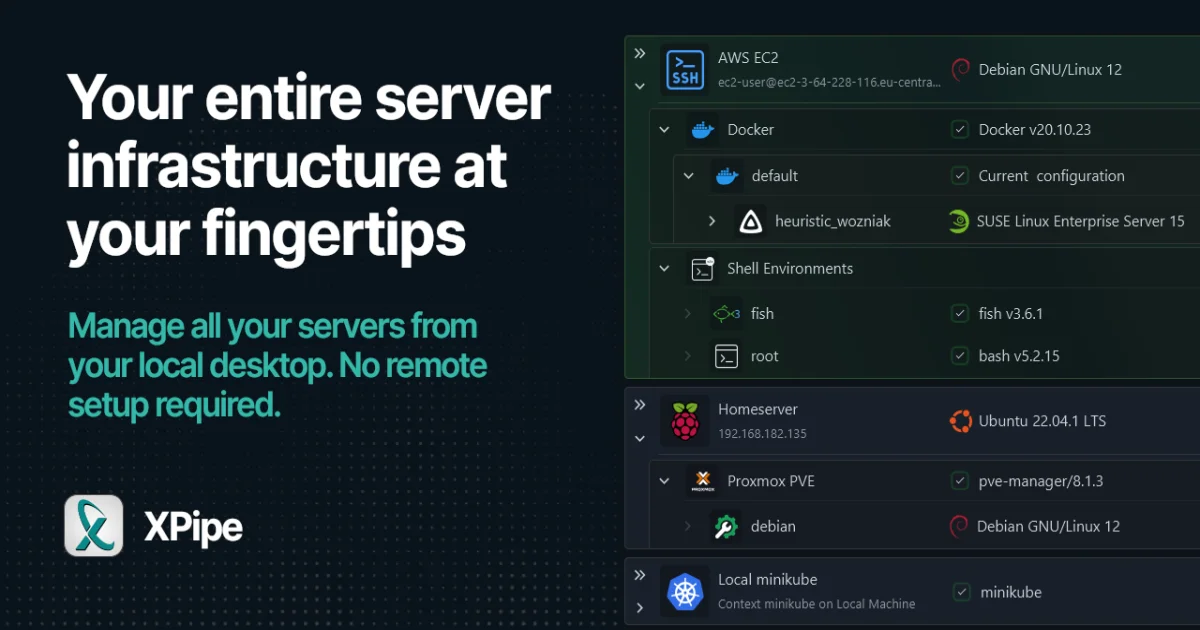
XPipe is a cross-platform server management hub that connects to SSH, Docker, Kubernetes, and more through your local CLI tools. No remote setup required.
TL;DR
TL;DR: XPipe is a cross-platform server management hub that connects to SSH, Docker, Kubernetes, WSL, and more through your local CLI tools — no remote setup or protocol libraries required.
Source and Accuracy Notes
- Official site: https://xpipe.io
- Documentation: https://docs.xpipe.io
- HN Launch: Show HN: XPipe (136 points, June 2024)
What Is XPipe?
XPipe is a desktop application that gives you a unified interface to manage all your remote servers, containers, and shell environments from one place. Unlike traditional remote management tools that require specific protocols or server-side agents, XPipe works by delegating everything to your locally installed CLI tools.
The core idea is simple: instead of bundling SSH libraries, Docker clients, or Kubernetes SDKs, XPipe launches your existing ssh, docker, kubectl, and other commands in the background and communicates through their stdin/stdout/stderr streams. This means you can use the exact same tools and configurations you already have, while getting a polished GUI on top.
How XPipe Works
The Delegation Architecture
Most remote management tools implement their own protocol handlers — they include SSH clients, Docker API libraries, or Kubernetes SDKs as dependencies. XPipe takes a completely different approach:
# XPipe launches your local SSH client
ssh [email protected]

# Then communicates through stdin/stdout/stderr
# Detects shell type, OS, environment automatically
# Uses ls, rm, touch, etc. for file operations
```bash

When you connect to a remote system, XPipe:

1. Launches a local shell process (cmd, sh, bash, etc.)
2. Executes your configured connection command (e.g., `ssh user@host`)
3. Detects the remote environment (shell type, OS, available tools)
4. Adjusts its communication protocol accordingly
5. Provides file management through standard commands (`ls`, `rm`, `touch`)

This delegation model means XPipe doesn't ship with any remote connection libraries at all. It relies entirely on your existing toolchain.

### Supported Connections

XPipe supports a wide range of connection types out of the box:

- **SSH** — uses your locally installed SSH CLI client
- **Docker containers** — via `docker exec`
- **Podman containers** — via `podman exec`
- **LXD containers** — via `lxc exec`
- **Kubernetes pods** — via `kubectl exec`
- **WSL environments** — Windows Subsystem for Linux
- **MSYS2/Cygwin** — Unix-like environments on Windows
- **VMware VMs** — work in progress
- **Proxmox VMs** — work in progress

Each connection type uses the same delegation pattern: XPipe launches your local CLI tool and communicates through its standard streams.

## Setup Workflow

### Step 1: Install XPipe

Download XPipe from [xpipe.io](https://xpipe.io) for your platform (Windows, macOS, or Linux). The installer is a standard native application — no runtime dependencies required.

### Step 2: Add Your First Connection

Open XPipe and click "Add Connection." Choose your connection type:

```bash
# For SSH connections, XPipe uses your existing SSH config
# ~/.ssh/config entries are automatically detected
ssh user@hostname

# For Docker, specify the container name
docker exec -it my-container /bin/bash

# For Kubernetes, use kubectl syntax
kubectl exec -it my-pod -- /bin/bash
```bash

XPipe will launch the command in the background, detect the remote environment, and present you with a file browser and terminal interface.

### Step 3: Configure Authentication

XPipe integrates with password managers for secure credential storage. You can:

- Store connection credentials in XPipe's encrypted vault
- Use your system's keychain (macOS Keychain, Windows Credential Manager, Linux Secret Service)
- Integrate with external password managers (1Password, Bitwarden, KeePass)
- Use SSH agent forwarding for key-based authentication

### Step 4: Sync Across Devices

For teams or multi-device setups, XPipe offers git-based synchronization:

```bash
# Initialize a git repository for your connections
xpiped sync init --remote [email protected]:team/xpipe-config.git

# XPipe automatically commits and pushes changes
# Supports SSH auth, GPG signing, and advanced git features
This lets you share connection configurations across your desktop, laptop, and team members while keeping everything in version control.
Deeper Analysis
Why the Delegation Model Matters
The delegation architecture solves several problems that plague traditional remote management tools:
No protocol lock-in. Traditional tools often require specific server-side agents or protocols (SFTP, specific SSH configurations, Docker API exposure). XPipe works with whatever you already have installed.
Familiar toolchain. You keep using the same SSH configs, Docker contexts, and Kubernetes kubeconfigs you’ve always used. There’s no migration or reconfiguration needed.
Reduced attack surface. XPipe doesn’t parse SSH keys, handle TLS certificates, or implement Docker API authentication. Those responsibilities stay with your battle-tested CLI tools.
Faster updates. When OpenSSH releases a security patch or Docker adds a new feature, XPipe automatically benefits — there’s no bundled library to update.
Performance Considerations
The delegation model has trade-offs. Every file operation requires spawning a subprocess and parsing its output. For bulk operations (copying thousands of files, searching large directories), this can be slower than native protocol implementations.
However, for interactive use — browsing directories, editing config files, monitoring logs, running commands — the performance is indistinguishable from native tools. The subprocess overhead is measured in milliseconds, not seconds.
Security Model
XPipe handles sensitive information (passwords, SSH keys, API tokens) with several layers of protection:
- Encrypted storage — credentials are stored in an encrypted vault using your system’s keychain
- Password manager integration — avoid storing credentials in XPipe at all
- No cloud sync by default — connection configs stay local unless you explicitly enable git sync
- Audit logging — all connection attempts and file operations are logged
The security documentation at docs.xpipe.io/security covers threat models, encryption details, and best practices.
Practical Evaluation Checklist
Use this checklist to evaluate whether XPipe fits your workflow:
- You manage multiple servers — SSH, Docker, Kubernetes, or mixed environments
- You switch between devices — desktop at work, laptop for travel, home server
- You work in a team — shared connection configs via git sync
- You prefer CLI tools — XPipe complements rather than replaces your terminal
- You need file management — browsing, editing, transferring files on remote systems
- You use password managers — 1Password, Bitwarden, KeePass integration available
Security Notes
XPipe’s security model is transparent and well-documented. Key points:
- Credentials are encrypted at rest using your system’s keychain
- No telemetry or analytics are sent to XPipe servers
- Git sync is optional and uses your own repository
- The application is closed-source but the security architecture is documented
- Password manager integration means you never need to store credentials in XPipe
If you’re managing production infrastructure, review the security documentation before deploying. The git sync feature in particular requires careful consideration of repository access controls.
FAQ
Q: Does XPipe require installing anything on remote servers?
A: No. XPipe works entirely through your local CLI tools. Remote servers only need to support standard SSH, Docker, or Kubernetes connections — no agents or special software required.
Q: Is XPipe open source?
A: No, XPipe is a closed-source commercial product. However, the security architecture is fully documented, and the delegation model means no sensitive code runs on your servers.
Q: Can I use XPipe with my existing SSH config?
A: Yes. XPipe automatically detects and uses your ~/.ssh/config file, including all hosts, aliases, and connection options you’ve already configured.
Q: How does git sync work for team collaboration?
A: XPipe can automatically commit and push connection configuration changes to a git repository. Team members pull the same repository to get shared connection configs. The feature supports SSH auth, GPG signing, and any git remote (GitHub, GitLab, self-hosted).
Q: What happens if my local SSH client updates?
A: XPipe automatically uses the updated version. Since it delegates to your local tools rather than bundling its own libraries, you always get the latest security patches and features without updating XPipe itself.
Q: Can XPipe replace my terminal emulator?
A: XPipe includes a built-in terminal for remote sessions, but it’s designed to complement rather than replace your preferred terminal. You can configure XPipe to open connections in your external terminal emulator if preferred.
Conclusion
XPipe solves a real problem for developers and sysadmins who manage multiple remote systems. The delegation architecture is elegant — it gives you a polished GUI without sacrificing the flexibility and security of your existing CLI toolchain.
The git sync feature is particularly valuable for teams. Sharing connection configurations through version control eliminates the “works on my machine” problem and ensures everyone has access to the same infrastructure.
If you regularly SSH into servers, manage Docker containers, or work with Kubernetes clusters, XPipe is worth evaluating. The free tier covers most individual use cases, and the team features justify the cost for collaborative environments.
The main limitation is performance for bulk file operations — the subprocess delegation adds overhead compared to native protocol implementations. But for interactive use, the trade-off is worth it for the flexibility and security benefits.
Related Posts
ai-setup
Recall – Persistent Memory for Claude Code via MCP Hooks
Recall gives Claude Code a permanent memory store that survives session restarts and context compaction. Four hooks capture and restore context automatically — with cloud SaaS or self-hosted options.
2/28/2026
dev-tools
Automotive Skills Suite for AI Engineering
Evaluate Automotive Skills Suite for APQP, ASPICE, HARA, safety-plan, and DIA workflows with setup notes, governance risks, and SME review guidance.
5/28/2026
dev-tools
awesome-agentic-ai-zh Roadmap Guide
Explore awesome-agentic-ai-zh as a Chinese agentic AI learning roadmap, with setup notes, track selection, study workflow, and evaluation guidance.
5/28/2026