Piny – Visual Editor for VSCode, Cursor, Windsurf
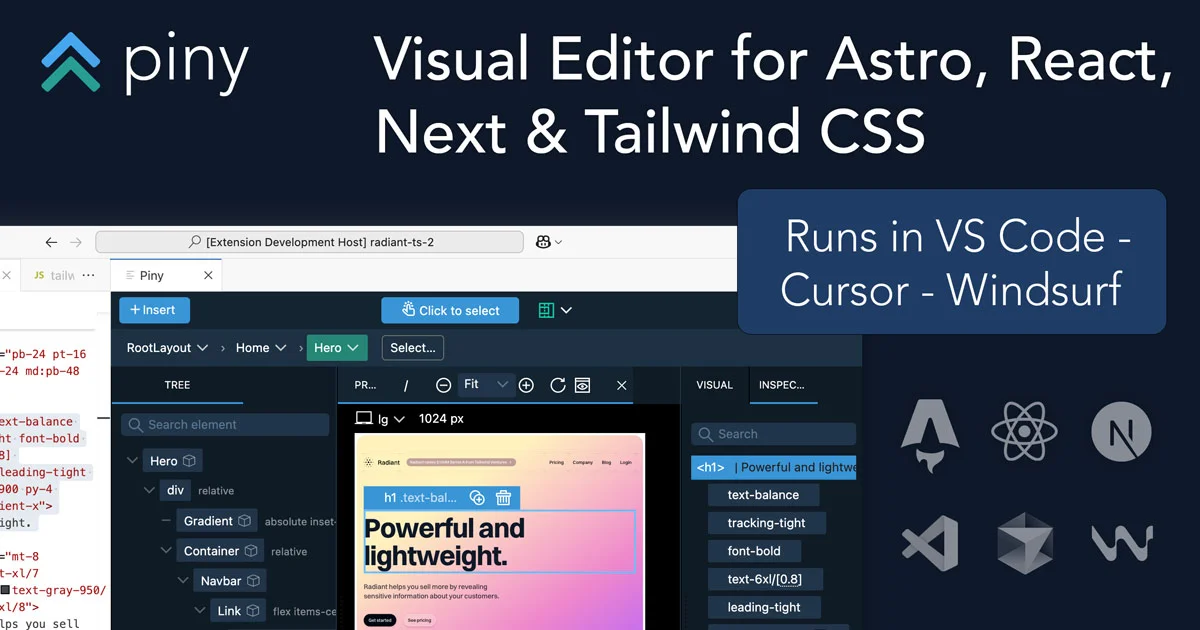
Piny is a free VS Code extension for visual editing of Astro, React, Next.js and Tailwind CSS projects. Edit components directly in code with visual controls.
TL;DR
TL;DR: Piny is a free VS Code/Cursor/Windsurf extension that adds visual editing controls for Astro, React, Next.js and Tailwind CSS — all changes land directly in your source code with no abstraction layer or cloud service.
Source and Accuracy Notes
- Project page: getpiny.com
- VS Code Marketplace: marketplace.visualstudio.com/items?itemName=piny.piny
- HN launch thread: news.ycombinator.com/item?id=43942514
- License: Free (standard) + Paid Pro (Early Access)
What Is Piny?
Piny is a visual editor extension for VS Code, Cursor, and Windsurf. Rather than generating abstractions or wrapping your markup in a proprietary format, every edit Piny makes writes directly to your source code — plain JSX, TSX, HTML, or any file containing Tailwind class strings.
The HN launch post frames it clearly:
“Piny is a visual editor that runs directly in Visual Studio Code, Cursor and Windsurf. It supports Tailwind CSS, Astro, React and Next.js. All edits happen directly in the code, so there are no abstractions, no cloud services and no lock-in.”
The pitch is squarely aimed at developers who use AI coding agents. When an agent produces markup that needs a quick visual tweak — adjust a heading size, check a padding value, inspect a component’s layout — Piny fills that gap without switching tools or context.
Setup Workflow
Step 1: Install the Extension
Open VS Code (or Cursor/Windsurf), press Ctrl+Shift+X to open Extensions, and search for piny. Click Install.
Alternatively, install directly from the command line:
code --install-extension piny.pinyStep 2: Open a Project
Piny works with any of the following project types:
- Astro
- React (with Vite or any bundler)
- Next.js (App Router and Pages Router)
- Any project using Tailwind CSS
Open your project folder in VS Code as usual.
Step 3: Activate Visual Editing
Right-click anywhere in your code file and choose “Edit in Piny” from the context menu. The Piny visual panel opens inside VS Code.
For Visual Select (project navigation, clicking elements in a browser preview to jump to source), insert the Piny dev script into your layout. React + Vite and any Next.js and Astro projects are supported for this feature.
Deeper Analysis
Tailwind Class Inspector
Piny’s Class Inspector displays an editable tree view of all Tailwind classes on a given element, including state variants like hover:, focus:, dark:, and responsive prefixes like md:. You can toggle classes on and off, edit values inline, and see the result reflected in the live preview.
This is meaningfully different from just editing Tailwind strings manually because the tree view surfaces all the implicit state on an element in one place — something that is easy to miss when scanning raw class strings.
Visual Controls
For tasks like adjusting font size, padding, margin, colors, or border radius, Piny provides visual control widgets that update the underlying class or style value in real time. The value change is immediate and deterministic — it writes exactly the Tailwind class you would have typed yourself.
The author notes this is particularly useful for tasks where it is easier to “directly change a visual property than to go back and forth about it with your AI agent.”
Piny Free vs Pro
| Feature | Free | Pro |
|---|---|---|
| Class Inspector | Yes | Yes |
| Visual Controls | Yes | Yes |
| Visual Select (project navigation) | No | Yes |
| Custom Tailwind theme import | No | Yes |
| Early Access pricing | — | 60% off, lifetime |
Pro trial is included so you can test Visual Select before purchasing. The standard edition requires no sign-up.
Design Philosophy
The Piny philosophy, as described in the launch post:
“Piny is there when you need it and gets out of the way when you don’t.”
Unlike traditional visual editors that try to own the entire page structure, Piny focuses on two narrow areas where it adds clear value: Tailwind styling and project navigation. The rest of your code — logic, data, routing — is untouched and unabstracted.
Practical Evaluation Checklist
- Extension installs without errors in VS Code, Cursor, and Windsurf
- Class Inspector correctly surfaces all Tailwind variants on an element
- Visual Controls write correct Tailwind classes (e.g., changing a slider sets
text-{size}not a raw pixel value) - Visual Select correctly jumps from browser preview element to source line
- Astro, Next.js, and React + Vite projects all work with Visual Select dev script
- Pro trial activation works without requiring immediate payment
- No cloud dependency — extension works fully offline after installation
- All edits land in source code, not in a separate state or JSON file
Security Notes
Piny is a local VS Code extension. It does not phone home, does not require an account for the free tier, and generates no external network requests beyond checking for extension updates through the standard VS Code update mechanism. The Pro license is handled through the Pinegrow store, not through the extension itself.
The Visual Select feature requires inserting a small dev-only script into your layout during development. This script should not be included in production builds.
FAQ
Q: Does Piny work with plain HTML and CSS, or only with Tailwind? A: The primary value is with Tailwind CSS. Visual Controls and Class Inspector are designed around Tailwind’s naming conventions. Plain HTML/CSS projects are not the target use case.
Q: Is there a cloud or hosted version? A: No. Piny is a local VS Code/Cursor/Windsurf extension. There is no cloud service, no account required for the free tier, and no sync feature. Your code never leaves your machine.
Q: Can I use Piny alongside other AI coding agents like Cursor or Copilot? A: Yes — this is explicitly the intended use case. Piny is designed to complement AI coding agents, not replace them. You can have Piny open in a split pane while an AI agent edits the same file.
Q: What is the difference between Piny Pro and the free version? A: Pro adds Visual Select (clicking elements in a browser preview to jump to source), custom Tailwind theme import, and other utilities. The free version covers Class Inspector and Visual Controls for styling tasks.
Q: Does Piny work with dark mode Tailwind configurations?
A: Yes. The Class Inspector displays dark: variant classes alongside standard classes, and Visual Controls respect dark mode configuration in your Tailwind setup.
Conclusion
Piny occupies a narrow but genuine niche — developers who want a visual editing layer inside their existing IDE without committing to a full visual development framework or cloud service. The code-first constraint is the core design decision: every change is yours, readable, and portable.
For developers working with Tailwind-heavy Astro, React, or Next.js projects, especially in combination with AI coding agents, Piny is worth trying. The free tier is genuinely free with no sign-up, and the Pro Early Access pricing (60% off, lifetime) is reasonable given the decade of Pinegrow desktop editor experience backing it.
Install it from the VS Code Marketplace or visit getpiny.com for documentation.
Related Posts
dev-tools
Automotive Skills Suite for AI Engineering
Evaluate Automotive Skills Suite for APQP, ASPICE, HARA, safety-plan, and DIA workflows with setup notes, governance risks, and SME review guidance.
5/28/2026
dev-tools
awesome-agentic-ai-zh Roadmap Guide
Explore awesome-agentic-ai-zh as a Chinese agentic AI learning roadmap, with setup notes, track selection, study workflow, and evaluation guidance.
5/28/2026
dev-tools
Baguette iOS Simulator Automation Guide
Set up Baguette for iOS Simulator automation, web dashboards, device farms, gesture input, streaming, and camera testing with Xcode caveats.
5/28/2026