TL;DR
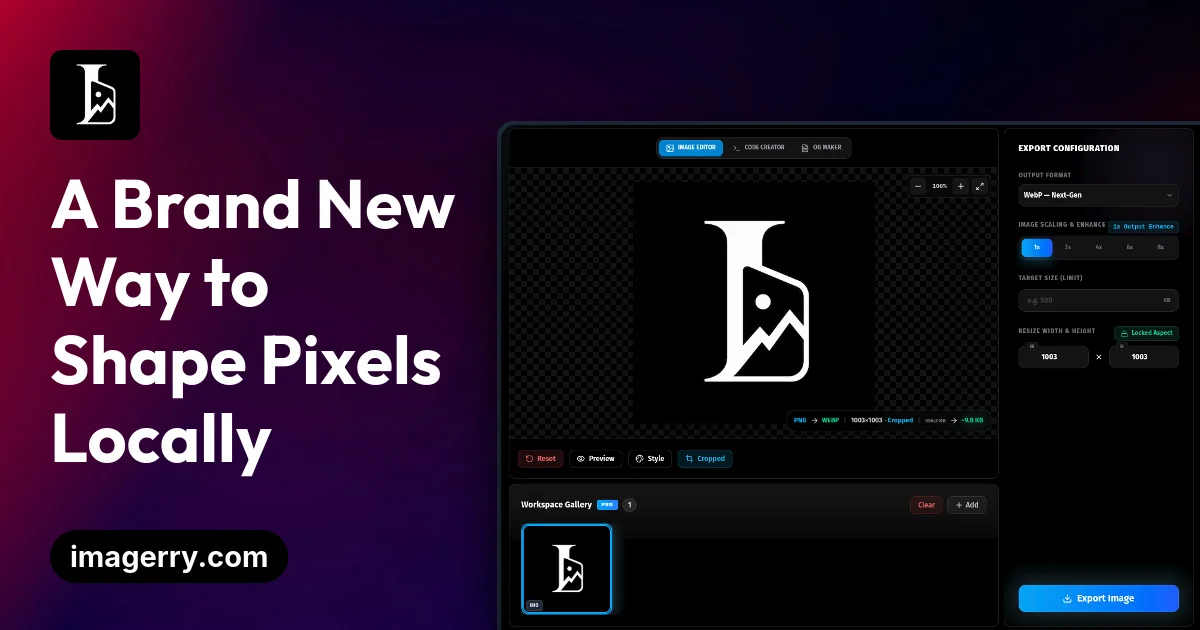
TL;DR: Imagerry is a browser-based image editor that processes everything locally via WASM and WebGPU — no uploads, no servers, no tracking. It covers resize, crop, format conversion (PNG, JPEG, WebP, AVIF, TIFF, BMP, ICO), code screenshot rendering, and OG card generation.
Source and Accuracy Notes
- Project page: imagerry.com ← visited and verified July 25, 2026
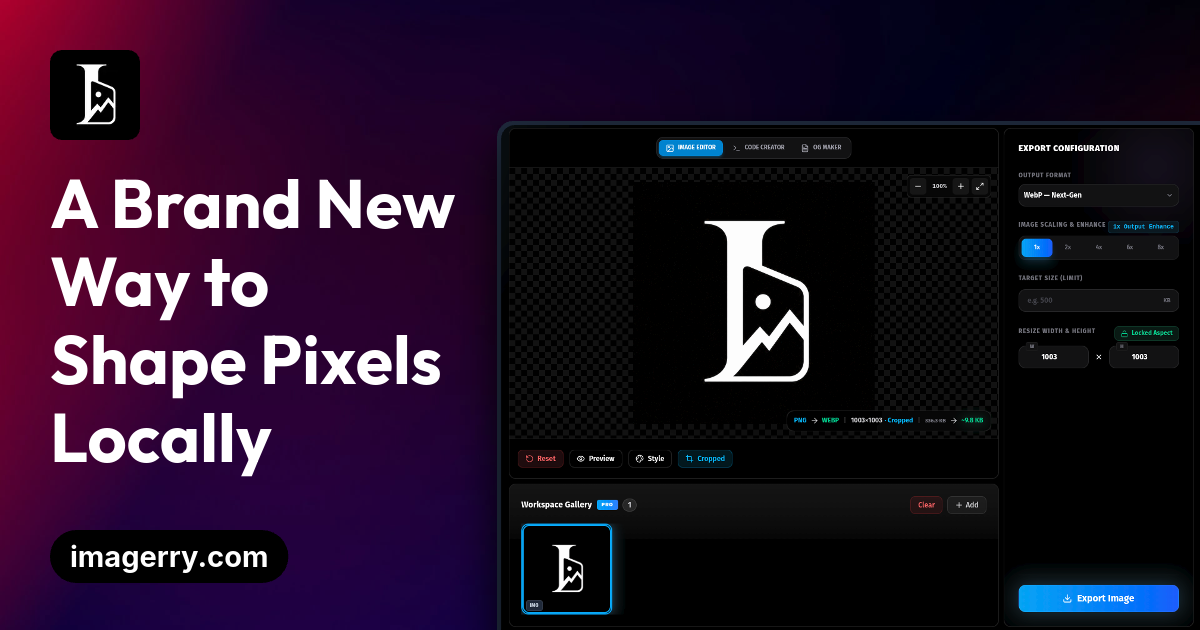
- OG image: imagerry.com/og.png — 1200x630 PNG, ~200KB
What Is Imagerry?
Imagerry is a privacy-first, client-side image editor that runs entirely in your browser using WASM and WebGPU. The product description on the homepage reads:
“Edit, resize, crop, customize, and convert images 100% privately in your browser with zero uploads.”
Every operation — resizing, filtering, watermarking, format conversion — executes locally in your browser sandbox. No image ever leaves your device unless you explicitly export it.
Core Workspace Modes
Imagerry ships three dedicated workspaces:
- Image Customizer — crop, resize, filters, watermarks, padding, background styling
- Code Creator — renders syntax-highlighted code inside a macOS-style terminal frame, exports as PNG
- OG Card Generator — builds Open Graph preview cards with editable titles, descriptions, logos, and brand accents
Format Support
Imagerry supports PNG, JPEG, WebP, AVIF, TIFF, BMP, and ICO output. JPEG, WebP, and AVIF also support a target file size limit in Pro mode.
Scaling Algorithm
Lanczos3 is a high-fidelity resampling algorithm that runs locally in the browser. Compared with basic resizing, it keeps edges sharper and preserves more detail during upscales and downscales. Pro users can access 4x, 6x, and 8x output scaling.
Setup Workflow
No installation required — Imagerry is a PWA that runs directly in the browser. However, a desktop app (Mac, Windows, Linux) is available for offline use.
Step 1: Open the Web Workspace
Navigate to imagerry.com/workspace and choose your workspace mode. No account required for basic use.
Step 2: Install Desktop App (Optional)
Download native desktop builds from the download page. Desktop apps use a Chromium engine for improved image rendering and performance.
Step 3: Process Your First Image
- Drag an image onto the workspace or click to upload from your file system
- Choose your output format (PNG, JPEG, WebP, AVIF, TIFF, BMP, ICO)
- Adjust dimensions using either pixel values or Lanczos3 scaling presets
- Apply optional filters, watermarks, or background styling
- Export — the file is saved directly to your device
Step 4: Set Up Pro (Optional)
Standard Lifetime is a one-time $39.99 purchase (currently discounted from $59.99). It includes:
- License activation on up to 3 devices
- All Pro-locked features (advanced scaling, batch ZIP export, custom background uploads)
- Native desktop apps for Mac, Windows, and Linux
- Lifetime updates and priority support
The Max license covers up to 5 devices. A Custom License for unlimited devices is available via email contact.
Practical Evaluation Checklist
- Works fully offline after first load (PWA)
- No image data leaves the browser — verified from site architecture
- Batch processing and ZIP export available in Pro
- Mobile-responsive as a PWA installable on Android and iOS
- OG card export at standard 1200x630 dimensions
- Code screenshot rendering with syntax highlighting and terminal frame
- All modern formats supported: WebP, AVIF alongside legacy JPEG/PNG
Security Notes
Imagerry’s privacy claim is structural rather than policy-based. Because all processing runs in the browser via WASM/WebGPU, image data is never transmitted to a server. This makes it suitable for processing screenshots, internal documents, or any sensitive visual assets where data residency is a concern.
The persistent local gallery stores canvas settings in IndexedDB on your device — no cloud sync.
FAQ
Q: Is my data really kept private? A: Yes. Imagerry runs inside your browser sandbox, so working images are never uploaded to Imagerry’s servers. That local-first architecture is what keeps sensitive screenshots and assets private.
Q: Is the Lifetime Pro payment a subscription? A: No. Lifetime Pro is a one-time purchase. You pay once and unlock premium features permanently, including advanced scaling, batch ZIP export, custom background uploads, desktop apps, and the persistent local gallery.
Q: Can I use Imagerry on my mobile phone? A: Yes. Imagerry is a fully responsive Progressive Web App (PWA). You can install it directly from your browser to your Android or iOS home screen and use it like a native app.
Q: Which output formats are supported? A: PNG, JPEG, WebP, AVIF, TIFF, BMP, and ICO. JPEG, WebP, and AVIF also support a target KB file size limit in Pro mode.
Q: How does the device limit work for Pro? A: Standard Lifetime allows activation on up to 3 personal devices. Max covers up to 5 devices. You can use Imagerry simultaneously across desktop, laptop, tablet, and phone without needing to deactivate.
Q: Does Imagerry require an internet connection? A: After the initial page load, Imagerry works fully offline as a PWA. No internet connection is needed for any image processing operations.
Conclusion
Imagerry fills a specific niche: a capable, local-first image editor that never phones home. For developers who need quick OG card generation, code screenshot rendering, or batch image conversion without sending assets to a third-party service, it is a practical alternative to cloud-based tools. The Pro tier is a one-time purchase rather than a subscription, which makes the desktop apps and advanced scaling accessible without ongoing cost.
For runany.dev readers who value privacy in their tooling, Imagerry is worth keeping in a browser tab.
Related Posts
review
Mosaic – Agentic Video Editing With a Node-Based Canvas
Mosaic lets you build and run multimodal AI video editing agents on a node-based canvas. Upload raw footage, design a workflow, and let AI handle the heavy.
5/28/2026
review
Kita – VLM-Powered Credit Review Automation
Kita uses vision-language models to automate document-based credit review for lenders in emerging markets, parsing 50+ document types from PDFs to photos.
5/29/2026
review
Karumi – AI Product Demos That Personalize at Scale
Karumi uses AI agents to deliver instant, personalized product demos to every visitor — zero humans, any language, fully automated. Here's how it works and.
5/29/2026