Cardboard - AI Video Editor in Your Browser
Cardboard is a browser-based video editor that uses natural language commands to cut, sync, and export footage. Built with WebCodecs and WebGL2, it runs entirely client-side with no server rendering.
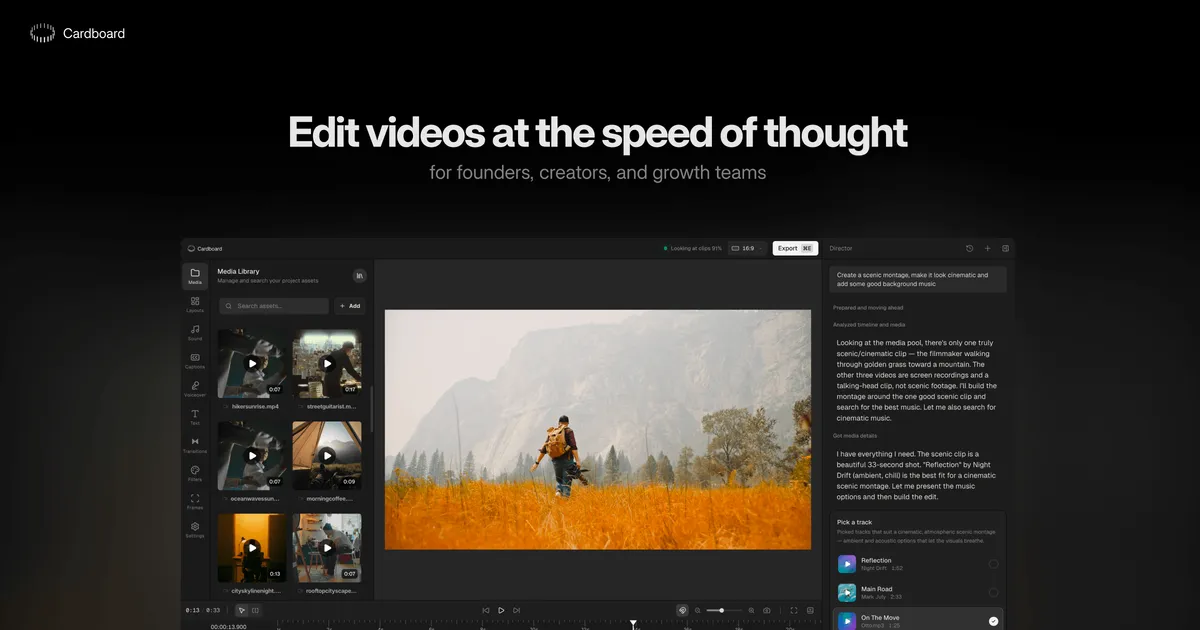
TL;DR
TL;DR: Cardboard is a browser-based video editor where you describe what you want in plain English — “make a 60-second recap” or “beat-sync this to the music” — and it generates a first draft using client-side WebCodecs and WebGL2 rendering. No server, no plugins, runs in any modern browser.
Source and Accuracy Notes
- Project page: usecardboard.com — verified via direct fetch, title confirmed
- HN launch thread: news.ycombinator.com/item?id=47170174 — 132 points, 83 comments
- License: proprietary SaaS (no open-source repo available)
- Demo: demo.usecardboard.com — no login required
What Is Cardboard?
Cardboard is a Y Combinator W26-backed browser application that turns raw video footage into edited clips using natural language commands. It targets creators sitting on stockpiles of unedited content — product walkthroughs, customer interviews, screen recordings, travel footage — who want a first cut without learning Premiere Pro or DaVinci Resolve.
The core promise: describe the output you want and get a timeline draft back. Commands like:
- “Make a 60-second recap from this raw footage”
- “Cut this into a 20-second ad”
- “Beat-sync this to the music I just added”
The editor then assembles clips, arranges them on a multi-track timeline, and syncs them to your chosen audio.
Technical Architecture
Cardboard runs entirely client-side in the browser. The founders explicitly call out that there is no server-side rendering and no plugins — everything executes locally using:
- WebCodecs — for hardware-accelerated video decoding and encoding
- WebGL2 — for compositing and rendering
Video understanding tasks (shot detection, beat analysis, caption placement) are routed through a pipeline of Cloud-based VLMs and traditional ML models. The agent orchestration layer uses third-party foundation models, with a user-accessible dropdown to select which model handles the job.
Key Features
The product ships with a full feature set that competes with entry-level desktop editors:
- Multi-track timeline with keyframe animations
- Shot detection — automatically identifies scene boundaries in raw footage
- Beat sync via percussion detection — snaps cuts to music beats
- Voiceover generation and voice cloning
- Background removal — isolate subjects from their environment
- Multilingual captions — spatially aware of subjects in frame
- XML export — compatible with Premiere Pro, DaVinci Resolve, and Final Cut Pro
The changelog shows 13 releases shipped since November.
Pricing
Cardboard operates on a usage-based SaaS model. Based on the product page, paid plans start at $1 per month for limited usage tiers, with higher tiers at $4 and $8/month. A free tier exists with usage caps. Exact tier limits should be confirmed on the pricing page before committing.
How to Use It
Step 1: Try the Demo
No account required for the demo at demo.usecardboard.com. Upload raw footage and issue your first natural language command.
Step 2: Sign Up for Production Use
Visit usecardboard.com and create an account to access full export functionality and persistent projects.
Step 3: Issue Your First Command
"Make a 60s recap from this raw footage"
```bash

Cardboard parses your intent, selects relevant clips, assembles a timeline, and produces a first draft. From there you can refine with follow-up commands:

```bash
"Make the product close-up 3 seconds longer"
"Add beat-synced transitions"
Step 4: Export
Export directly from the browser in your target format, or download an XML project file to continue in Premiere Pro, DaVinci Resolve, or Final Cut Pro.
Practical Evaluation Checklist
Browser compatibility:
- Modern Chromium-based browsers (Chrome, Edge, Arc) — recommended
- Firefox — WebCodecs support varies; check compatibility before relying on it
- Safari — WebGL2 support present; WebCodecs availability depends on version
Strengths:
- Zero install — works on any machine with a modern browser
- True client-side rendering — footage never leaves your device (beyond model inference pipeline)
- Natural language workflow dramatically lowers the barrier to a first edit
- XML export bridges the gap to professional workflows when needed
Limitations:
- No public repository — not open source; product roadmap is opaque
- Agent orchestration relies on third-party cloud models — latency and availability depend on those services
- Complex multi-scene narratives still benefit from human creative direction
- Voice cloning raises standard deepfake ethics considerations; use responsibly
Security Notes
Since video processing is client-side for rendering, raw footage does not go through Cardboard’s servers for the editing pipeline. However, video understanding tasks (shot detection, caption generation, voice processing) route through cloud-based models — confirm with the team whether footage used for these tasks is logged or stored. The voice cloning feature in particular warrants understanding the data retention policy before using it on sensitive content.
FAQ
Q: Does Cardboard work on mobile? A: It is a browser application and works on tablets with modern browsers, but the editing experience is designed for desktop use with a larger screen and keyboard.
Q: Is the source code open source? A: No. Cardboard is a proprietary SaaS product. There is no public repository.
Q: Can I export projects to Adobe Premiere Pro? A: Yes — Cardboard exports XML project files compatible with Premiere Pro, DaVinci Resolve, and Final Cut Pro.
Q: Does it work offline? A: The renderer works offline since it uses WebCodecs and WebGL2. Cloud model inference (shot detection, captioning, voice generation) requires an internet connection.
Q: What happens to my footage? A: Rendering is local and client-side. Cloud inference tasks send frames to model providers — review the privacy policy for specifics on data retention.
Conclusion
Cardboard solves the “I have footage but never edit it” problem by putting a natural language interface on top of a capable browser-based NLE. The client-side WebCodecs/WebGL2 rendering is technically clean, and the XML export path means it can fit into professional workflows rather than replacing them. At sub-$10 pricing tiers, it is worth trying for solo creators and small teams who need quick turnaround without installing desktop software. Watch the demo at demo.usecardboard.com before committing to a paid plan.
Related Posts
ai-setup
Sentrial – Catch AI Agent Failures Before Your Users Do
YC W26-backed AI agent observability platform. Trace sessions, detect silent regressions, and A/B test prompts in production before failures reach users.
5/28/2026
ai-setup
IonRouter – Fast Low-Cost AI Inference API
IonRouter is a YC W26 inference API routing open-source and fine-tuned models via an OpenAI-compatible endpoint, built on a C++ runtime optimized for GH200.
5/28/2026
review
Mosaic – Agentic Video Editing With a Node-Based Canvas
Mosaic lets you build and run multimodal AI video editing agents on a node-based canvas. Upload raw footage, design a workflow, and let AI handle the heavy.
5/28/2026