TL;DR
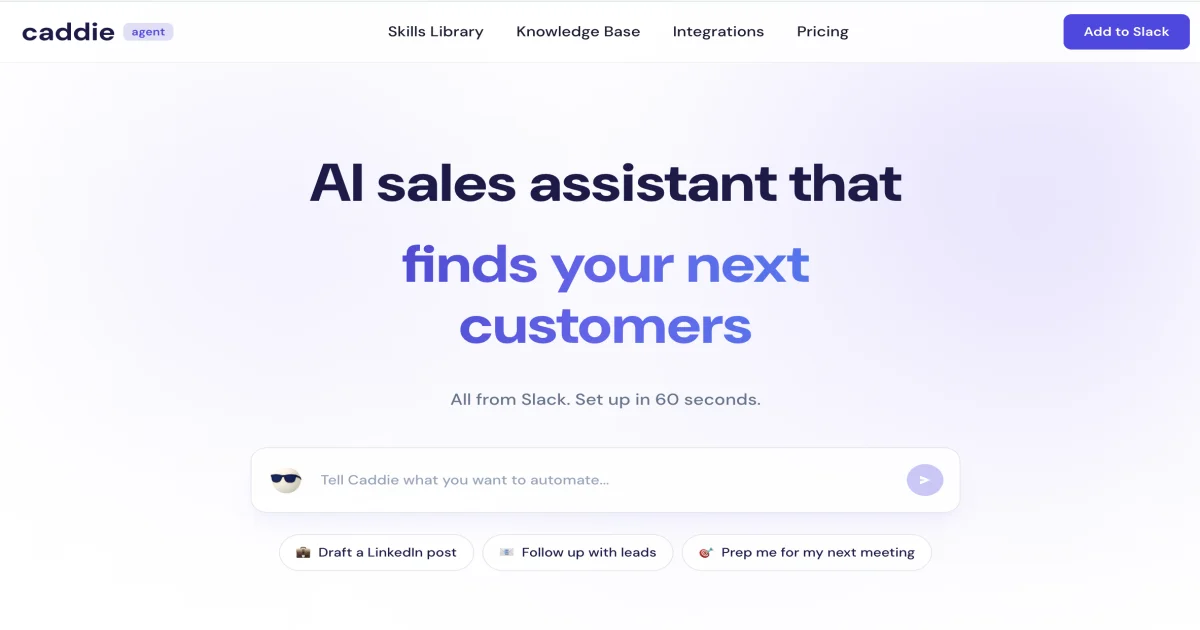
TL;DR: Caddie is a Slack-based AI agent that lives in your workspace, connects to your tools, and executes tasks on your behalf — no context switching required.
Source and Accuracy Notes
What Is Caddie?
Caddie is an AI agent that operates inside Slack. Rather than switching between a dozen SaaS tools, you message Caddie directly in Slack and it orchestrates actions across your connected apps — pulling data, updating records, sending messages, or triggering workflows.
The key differentiator is that Caddie builds a model of your specific workflow over time. It ships with pre-built skills (templates for common workflows) but each instance personalizes to the owner’s tools and preferences. Unlike generic chatbots, Caddie actually executes tasks rather than just responding with text.
Setup Workflow
Step 1: Install Caddie in your Slack workspace
Visit caddieagent.ai and click “Add to Slack.” Authorize the required permissions for your workspace.
Step 2: Connect your tools
Caddie supports integrations with:
- Google Workspace (Drive, Docs, Sheets)
- Notion and Confluence
- GitHub and GitLab
- Salesforce and HubSpot
- Custom API connections
Step 3: Install skills
Browse the pre-built skill library for common patterns — CRM updates, meeting scheduling, ticket creation. Each skill comes with configuration options for your specific account structure.
Step 4: Start chatting
Message Caddie in Slack naturally. Example prompts:
- “Create a Jira ticket for the API bug we discussed”
- “Update the sales pipeline with this week’s closes”
- “Schedule the team sync for tomorrow at 10am”
Deeper Analysis
Architecture: Caddie runs as a Slack app with OAuth connections to your tool ecosystem. When you send a message, Caddie interprets intent, selects the appropriate skill or chain of actions, executes via tool APIs, and reports back with results.
Skill framework: Skills are structured workflows (trigger → action sequence → confirmation). The skill editor lets you define conditions, loops, and error handling without writing code.
Multi-agent coordination: Enterprise plans support multiple Caddies with different roles (sales Caddie, engineering Caddie) that can hand off tasks between each other.
Pricing: Free tier includes 50 agent runs per month. Pro at $29/month adds unlimited runs and custom skills.
Practical Evaluation Checklist
- Install and authorize Slack app (5 min)
- Connect one tool integration
- Run a simple task via Slack message
- Verify the action completed in the connected tool
- Test error handling with a malformed request
Security Notes
- Caddie operates with scoped OAuth tokens, not full password access
- Each Caddie instance only sees data from connected integrations
- Workspace admins can audit all agent actions via an activity log
- Review connected app permissions regularly
FAQ
Q: What happens if Caddie makes a mistake? A: Caddie waits for confirmation on destructive or high-stakes actions. You can also set a “require approval” flag on any skill.
Q: Can I build custom skills? A: Yes, the skill editor supports custom logic with conditional branching, loops, and multi-step sequences. No code required for basic skills.
Q: Does it work with private/internal APIs? A: Yes, custom API connectors are supported on Pro and Enterprise plans.
Q: How does it compare to using Zapier or Make? A: Unlike automation platforms that require manual trigger setup, Caddie responds to natural language requests and decides which actions to take dynamically.
Conclusion
Caddie collapses the gap between deciding to do something and doing it. By living inside Slack, it removes the friction of context-switching — you describe what you need and the agent handles the tool orchestration. The skill framework makes it approachable without requiring programming knowledge, while custom connectors keep it flexible for technical users.
Related Posts
ai-setup
Recall – Persistent Memory for Claude Code via MCP Hooks
Recall gives Claude Code a permanent memory store that survives session restarts and context compaction. Four hooks capture and restore context automatically — with cloud SaaS or self-hosted options.
2/28/2026
dev-tools
Baguette iOS Simulator Automation Guide
Set up Baguette for iOS Simulator automation, web dashboards, device farms, gesture input, streaming, and camera testing with Xcode caveats.
5/28/2026
dev-tools
Dulus Terminal Agent Setup Guide
Set up Dulus as a terminal AI agent with native and Docker paths, installer profiles, WebChat ports, repo safety checks, and shell-access risks.
5/28/2026